Calendar View for Project Tasks
See your project's tasks on a month or week calendar, and drag them to new dates.
Every ActiveCollab update, the day it ships. Beta and early access features are still changing.
See your project's tasks on a month or week calendar, and drag them to new dates.
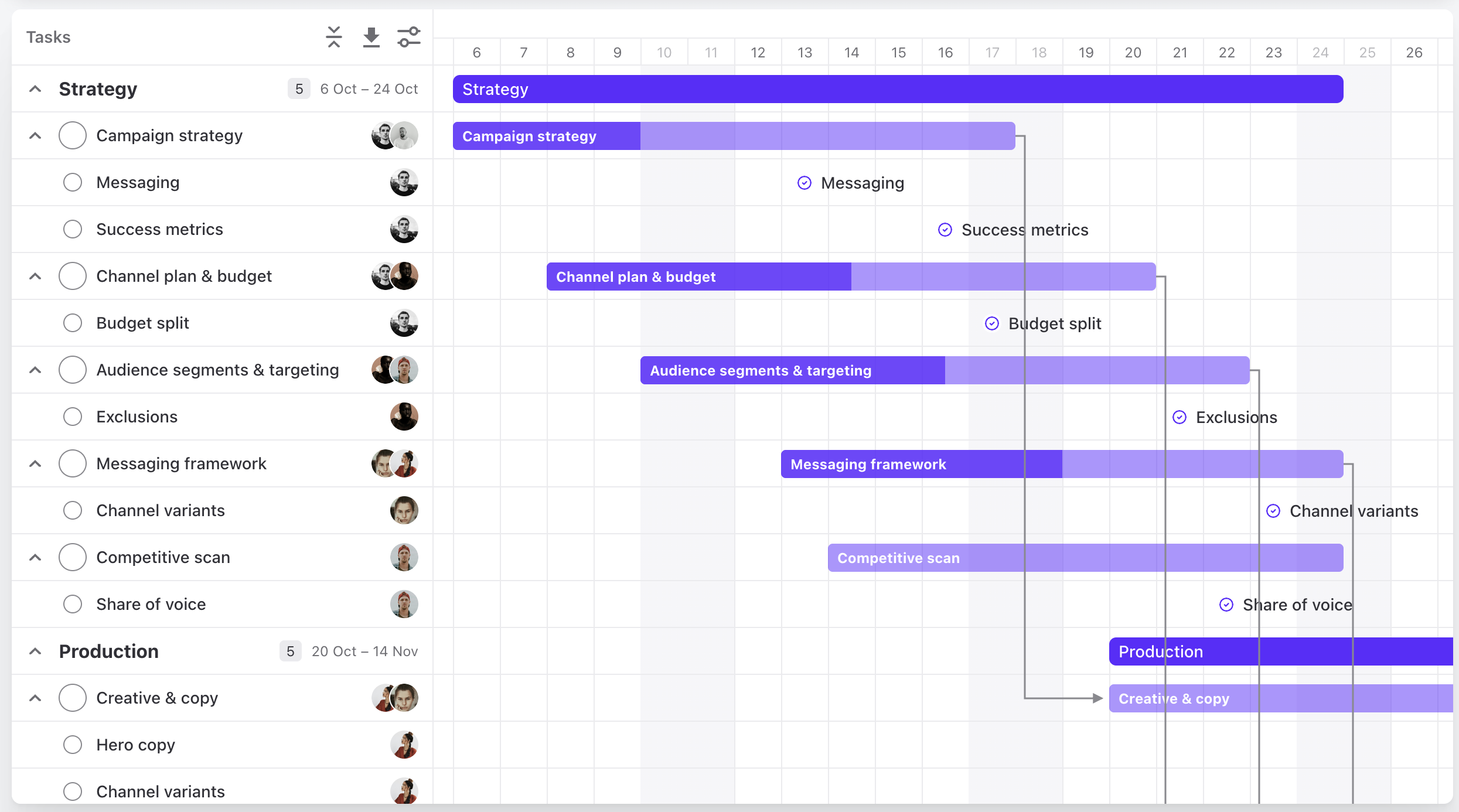
The project timeline is rebuilt from the ground up. It stays fast on large projects, and you can change the plan right on the chart.
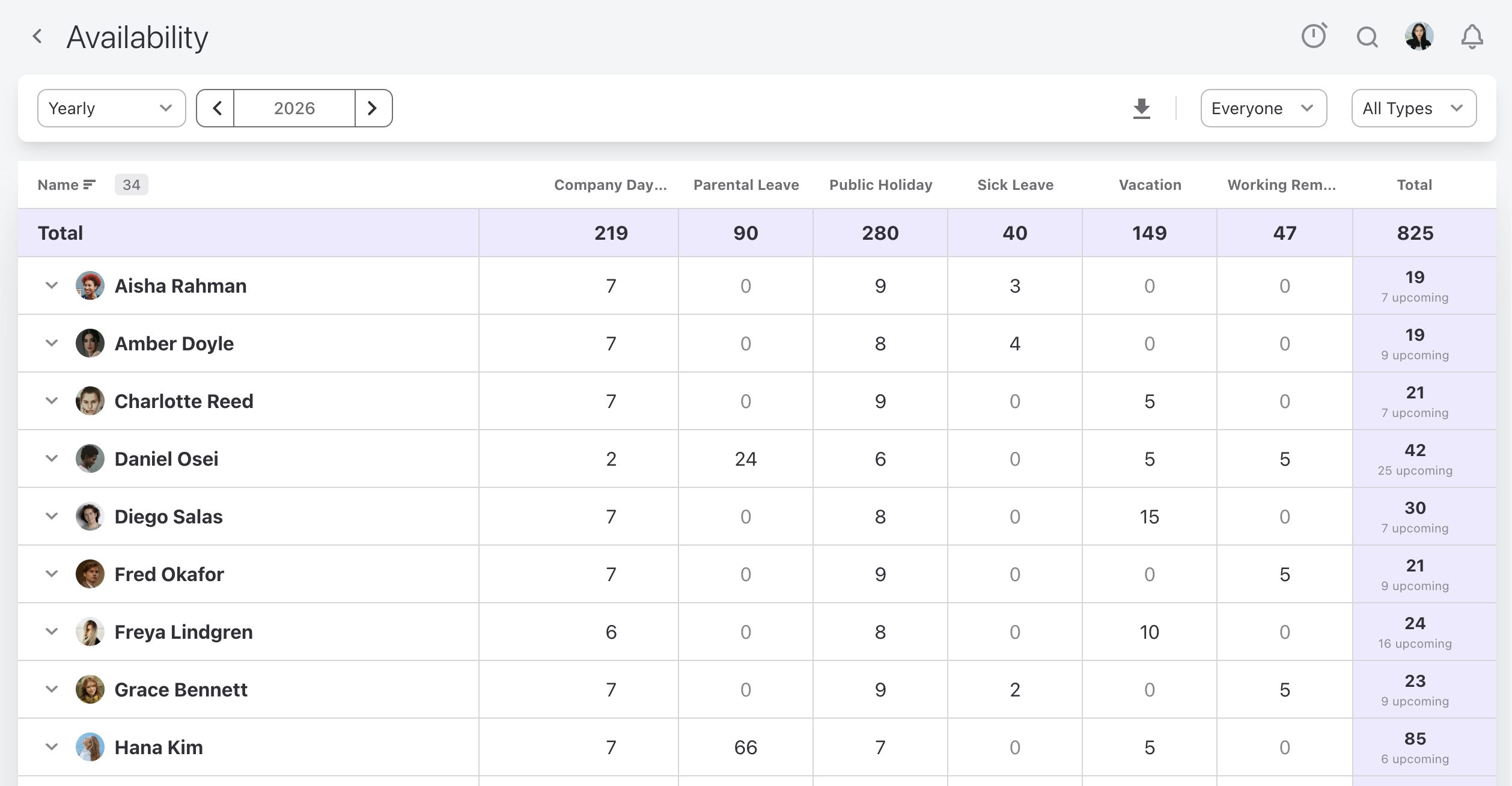
Know who took time off, and how much, for any period. You do not have to check profiles one by one or build a spreadsheet at the end of the year.
Merge labels that mean the same thing, such as Bug, Bugs, and Defect, into one label. Every task stays labeled.
Choose Merge Into... on a label and select the label that you want to keep. Tasks move to the label that you keep, and the old label is deleted. If a task already has both labels, it keeps only the label that you keep.
When you delete a label that tasks still use, the dialog shows Merge Instead. Use it to keep the tasks labeled.
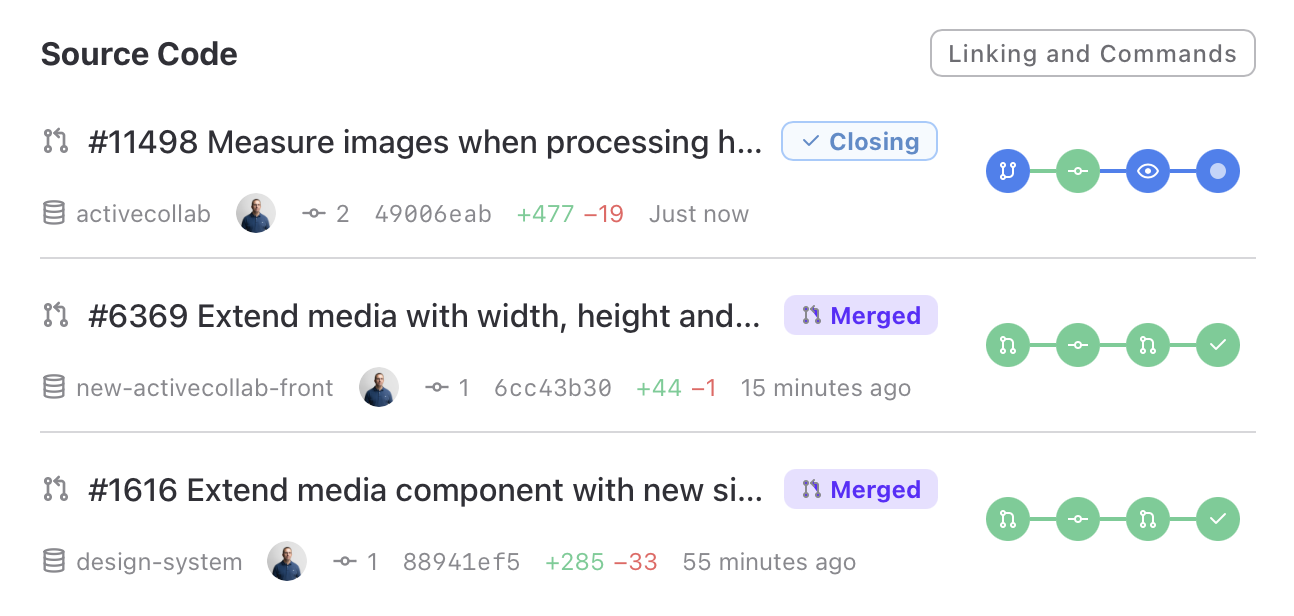
"Is this merged yet?" should not need a message to a developer. Connect GitHub or GitLab, and the work behind each task comes to the task itself.
The branches, pull requests, and issues you link show on the task with their build and deploy state. They stay current on their own.
Turn on the Source column in the task list to see one status per task. A failing check is easy to see among the healthy tasks.
Put the task ID in a branch name or a pull request, and ActiveCollab links it. A closing word completes the task when the pull request merges.
Short commands in a commit or a pull request log time, set estimates, assign, and comment on the linked task.
It works with github.com, gitlab.com, and your own GitLab server. Developers who use AI agents can do the same linking through the ActiveCollab MCP server.
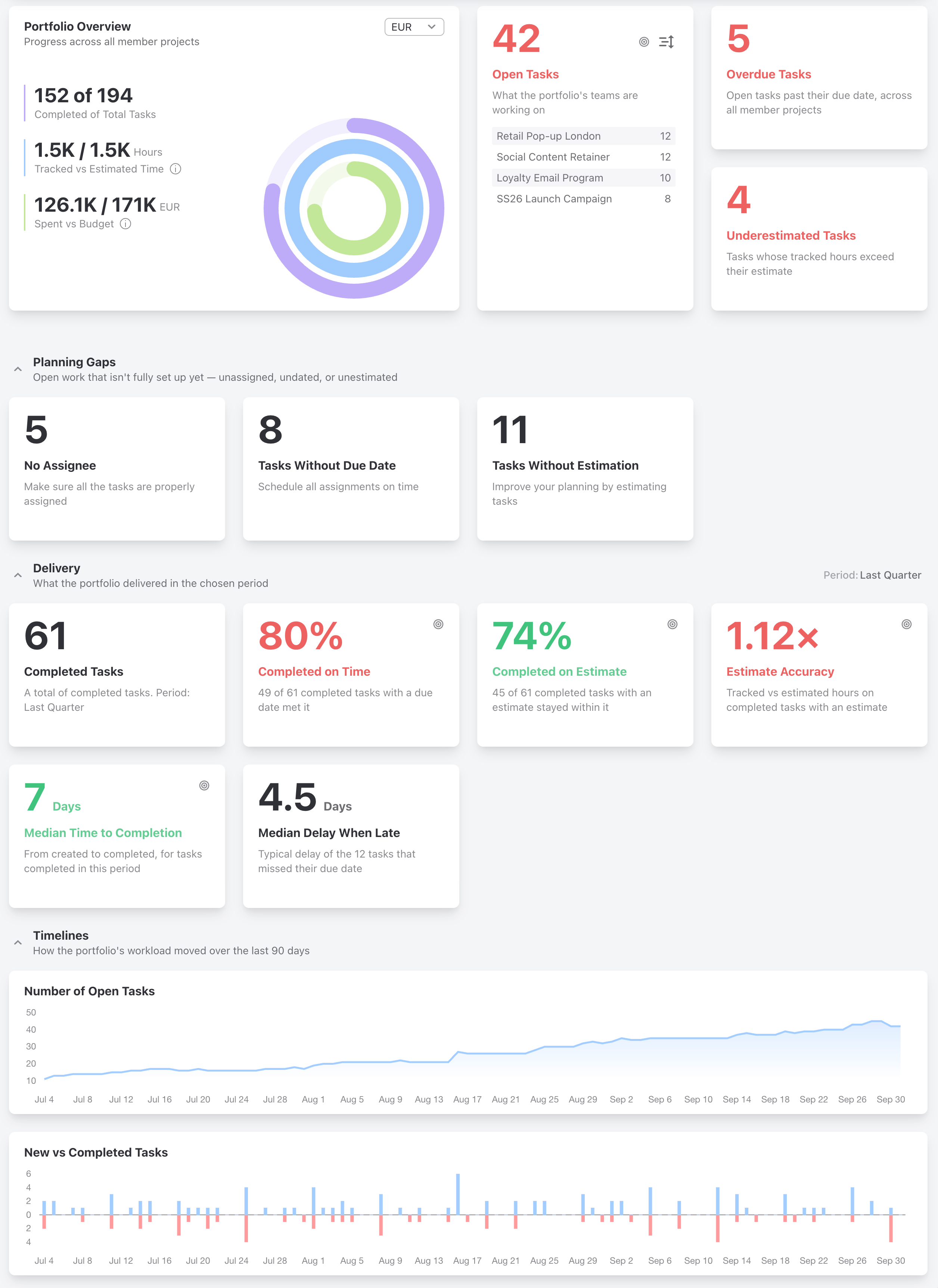
Group the projects that belong together and see how the whole group is doing on one page. No more opening projects one by one to check on a client.
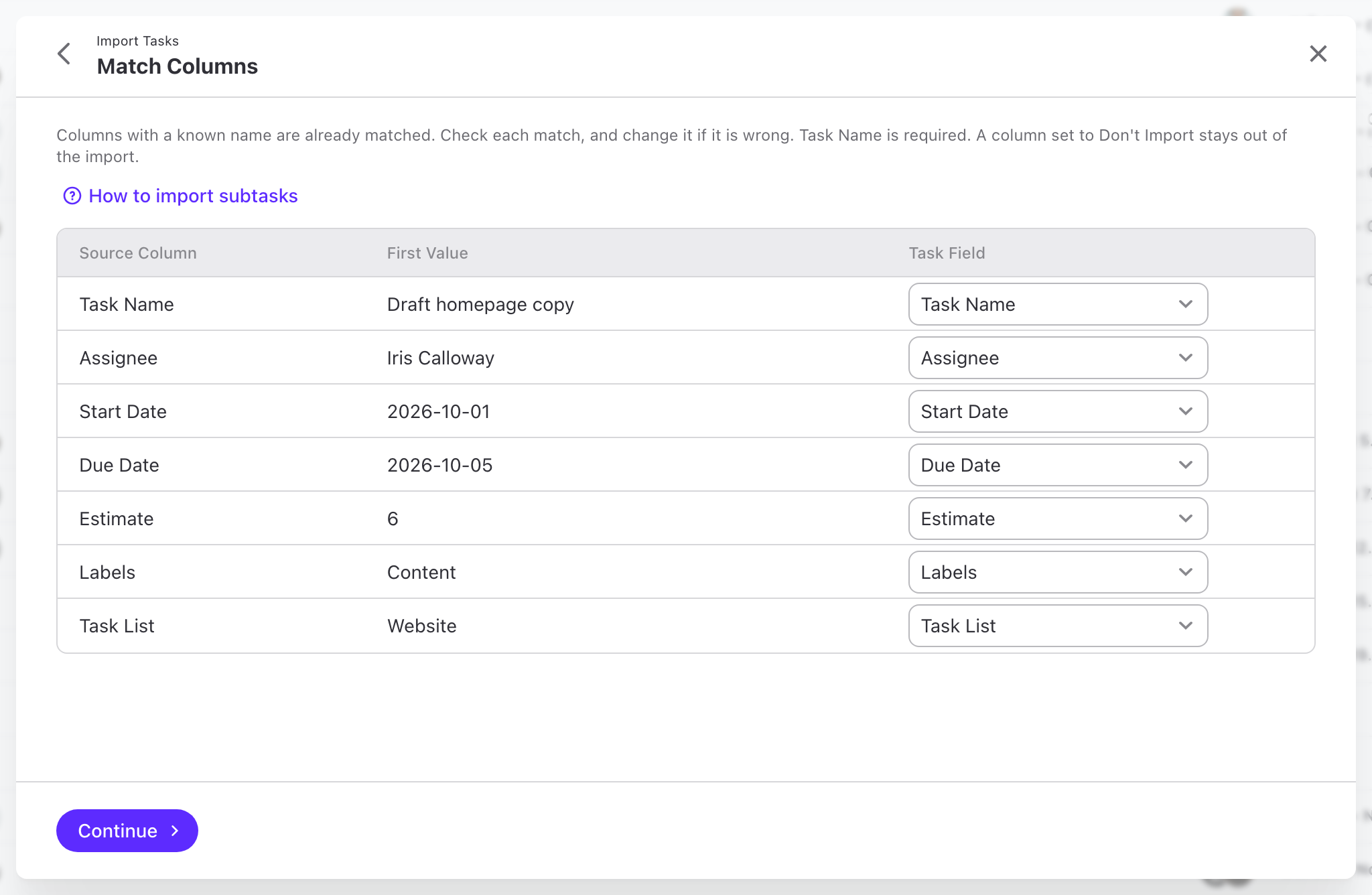
Bring your plan in from a CSV or Excel file, or paste it straight from a spreadsheet. The import matches your columns, creates the tasks, and tells you what it could not use.
Keep active conversations easy to find without deleting or losing any discussions or comments.
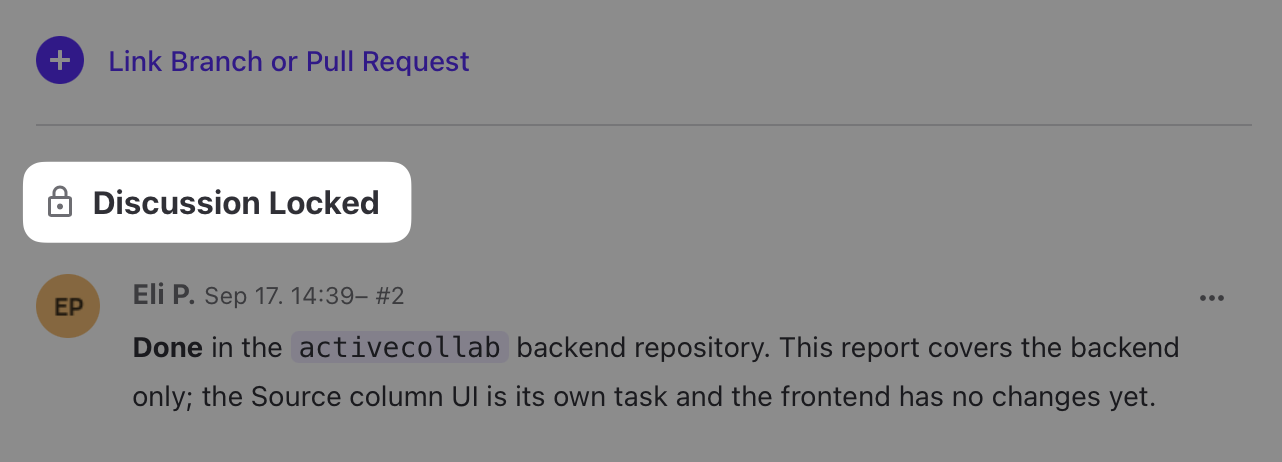
When a conversation is done, lock its comments to stop new replies. Everything already there stays visible, and the thread can be unlocked when work picks up again.
Move finished discussions out of the way so the active list shows what your team is still talking about. Nothing is deleted. You can still search, read, and restore them.
Keep active conversations easy to find without deleting or losing any discussions or comments.
When a conversation is done, lock its comments to stop new replies. Everything already there stays visible, and the thread can be unlocked when work picks up again.
Move finished discussions out of the way so the active list shows what your team is still talking about. Nothing is deleted. You can still search, read, and restore them.
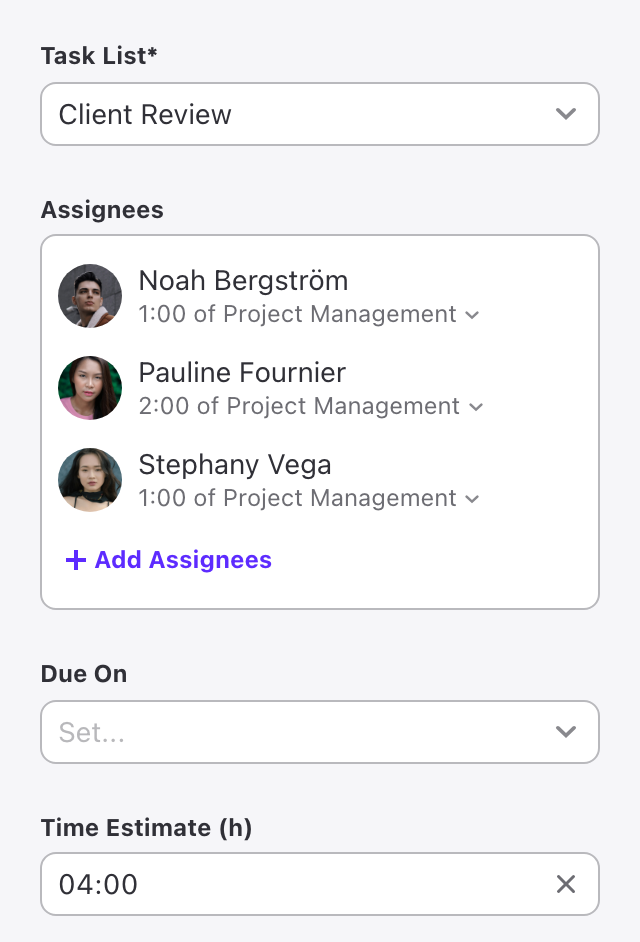
Set several assignees on template tasks and recurring tasks, each with their own time estimate. Every new project starts with the right responsibilities and planned effort.
Put more than one person on template tasks and recurring tasks, each with their own time estimate.
Every project created from the template starts with the right people and the planned effort.
Your AI agents can now work with project expenses through the ActiveCollab MCP server, making expense-related workflows easier to automate.
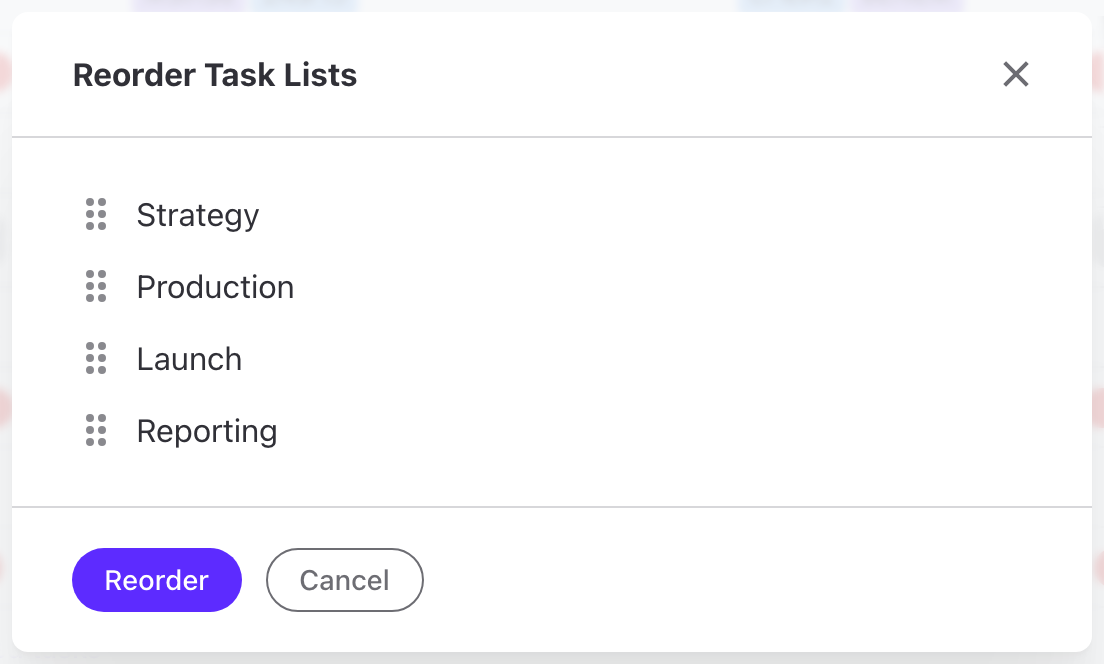
No more dragging long lists up and down the page. Open the new Reorder Task Lists dialog from the list header, drag the lists into the order you want, and save.
Open Reorder Task Lists from the list header and drag the lists into the order you want.
Stop dragging long lists up and down the page. Click Reorder, and the new order is saved.
New MCP tools let AI agents browse your projects, teams, task lists, discussions, and comments, and see what's assigned to you, all while making fewer mistakes.
Add a second layer of security to every account. At sign-in, your team confirms a one-time code sent to their email, on top of the password. Backup codes keep them covered if they cannot reach their inbox.
Turn it on in Security settings, and everyone gets a one-time login code by email each time they sign in.
Backup codes keep people covered if they can't reach their inbox.
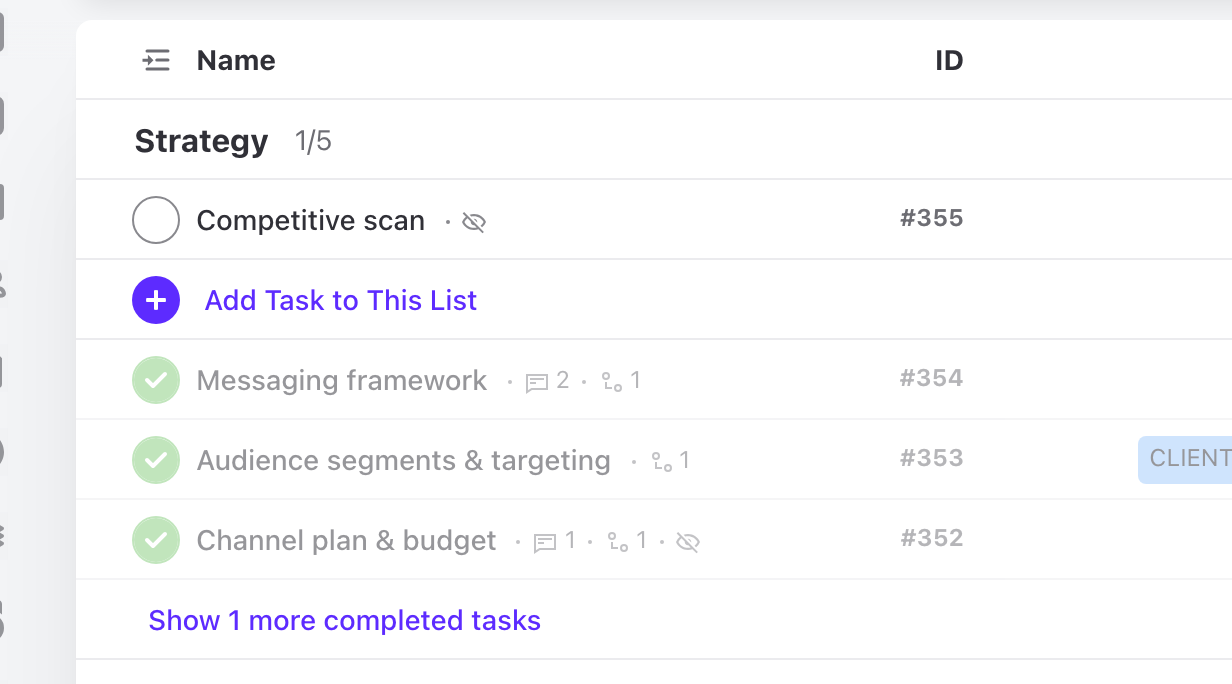
A dedicated column for the task ID. Hide it, copy a task's permalink in one click, or reveal the global ID for the API and AI agents.
Show task IDs as a column, so your team can refer to tasks by number.
Copy a task's permalink in one click, or reveal the global ID for the API and AI agents. Hide the column if you don't need it.
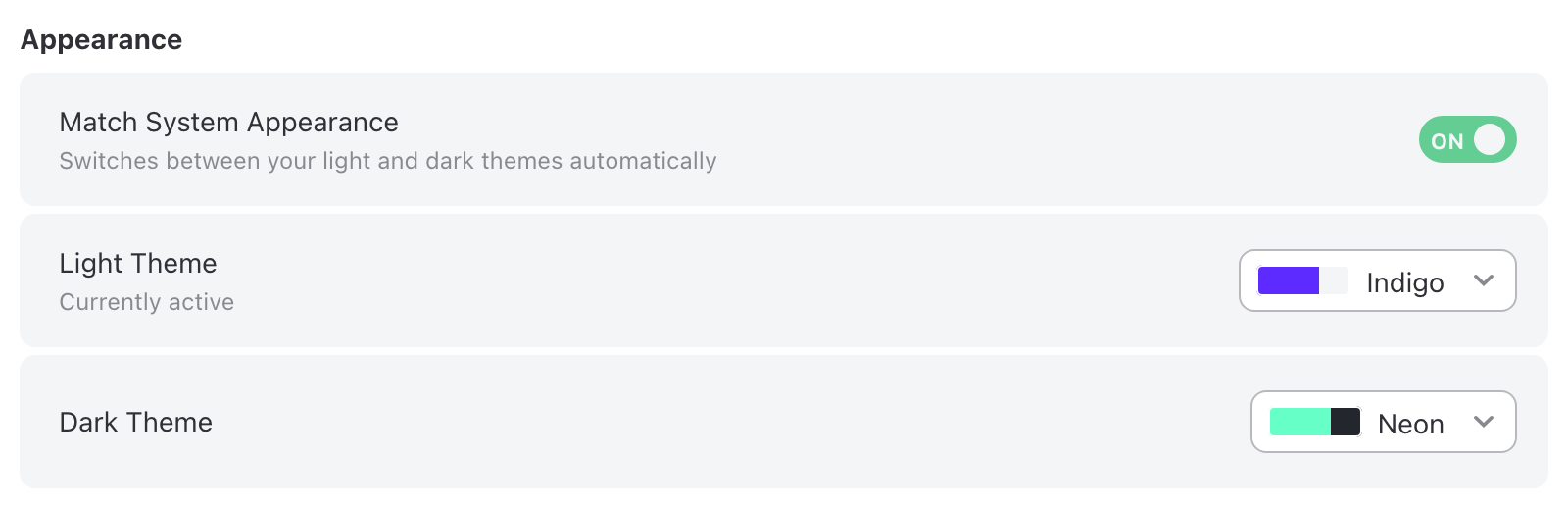
Give your eyes a break with two new dark themes. Turn on Match System Appearance, pick a light and a dark theme, and ActiveCollab switches between them to follow your system.
Pick the light theme and the dark theme you like best.
Turn on Match System Appearance, and ActiveCollab switches between the two when your operating system does.
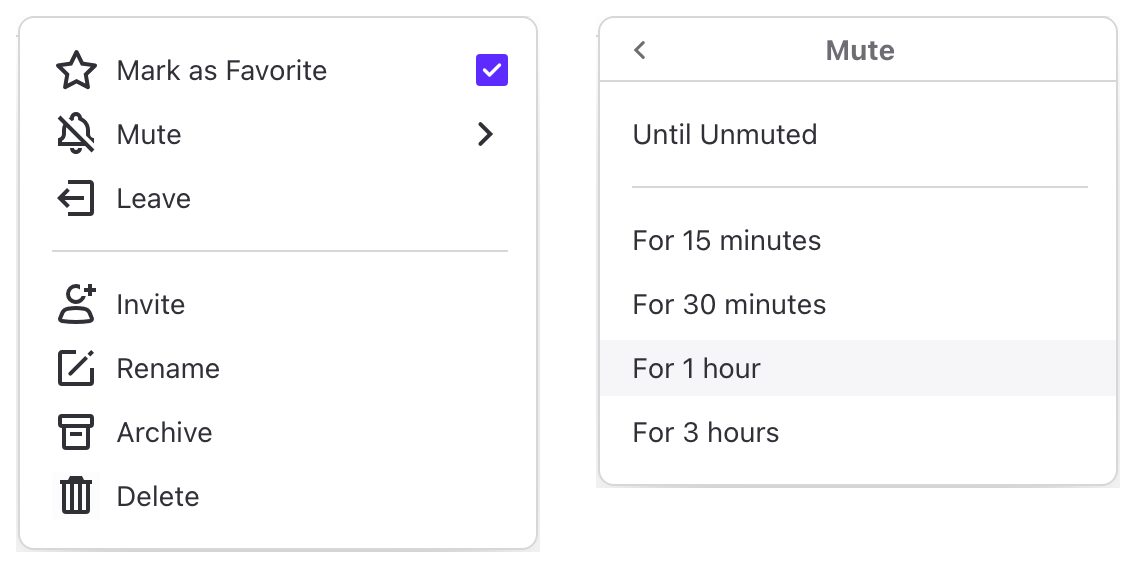
Mark conversations as favorites to keep them permanently at the top of your list. Need a break from a busy thread? Mute it for an hour and it comes back on its own, no more forgetting to unmute.
Mark a conversation as a favorite to keep it at the top of your chat list.
Mute a busy thread for anything from 15 minutes to 3 hours, and it unmutes on its own.
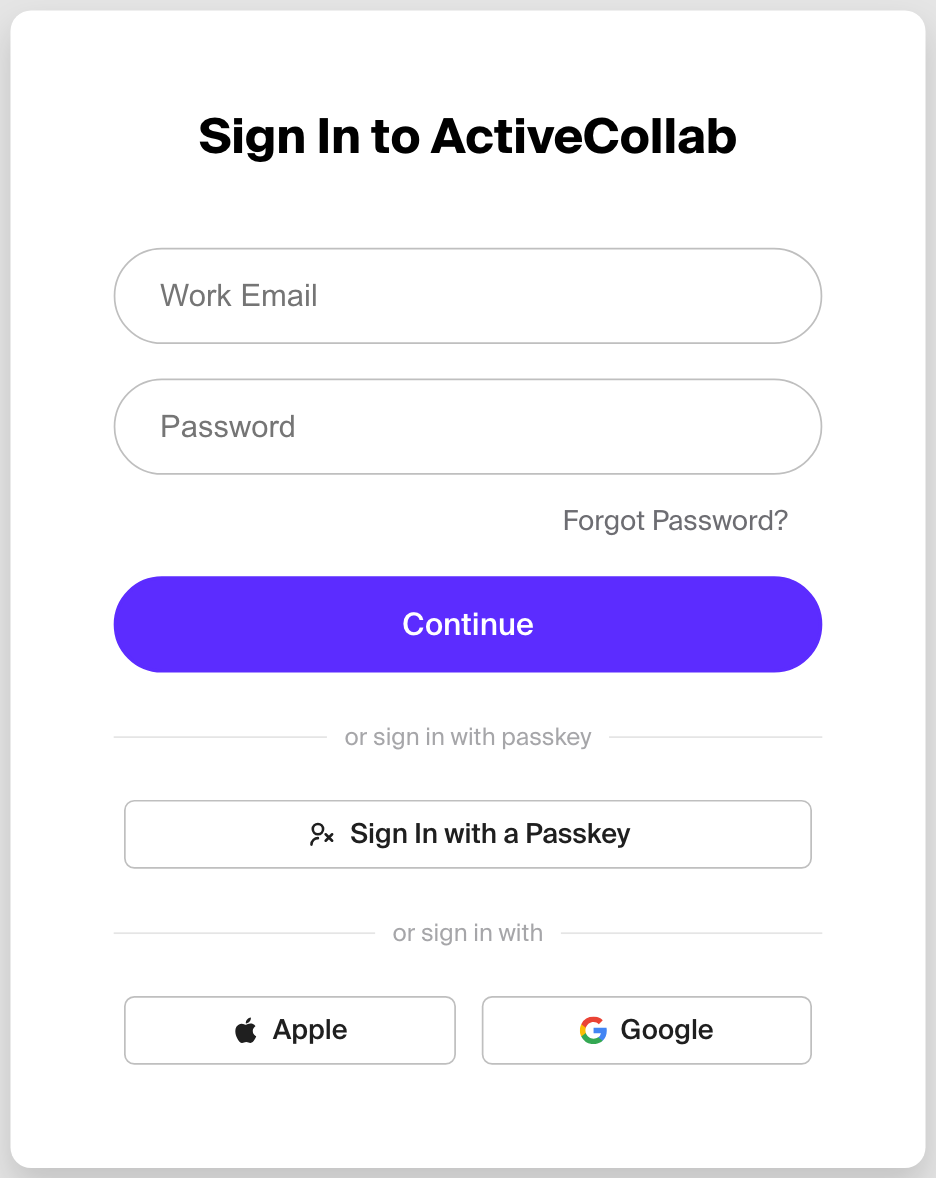
Add a passkey and unlock ActiveCollab the way you unlock your device, with your fingerprint or face. Works with any email address, and no separate app is required. Set it up on the Security page.
Unlock ActiveCollab the way you unlock your device, without typing a password.
Add a passkey on the Security page. It works with any email address, and no separate app is required.
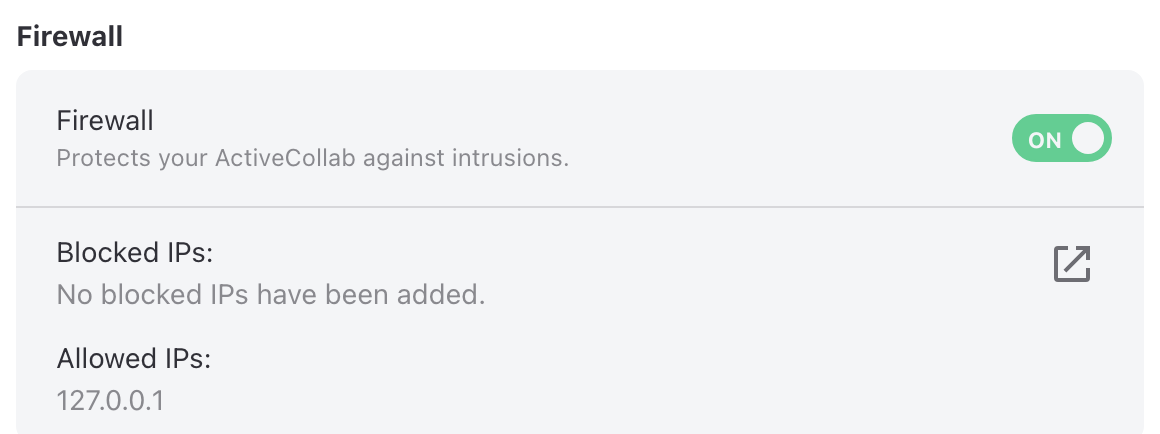
Lock down who can reach your account. Allow only the IP addresses you trust, and block everything else from Security settings.
List the IP addresses that can reach your account and block everything else, right from Security settings.
The updated firewall supports both lists, in Cloud and self-hosted accounts.
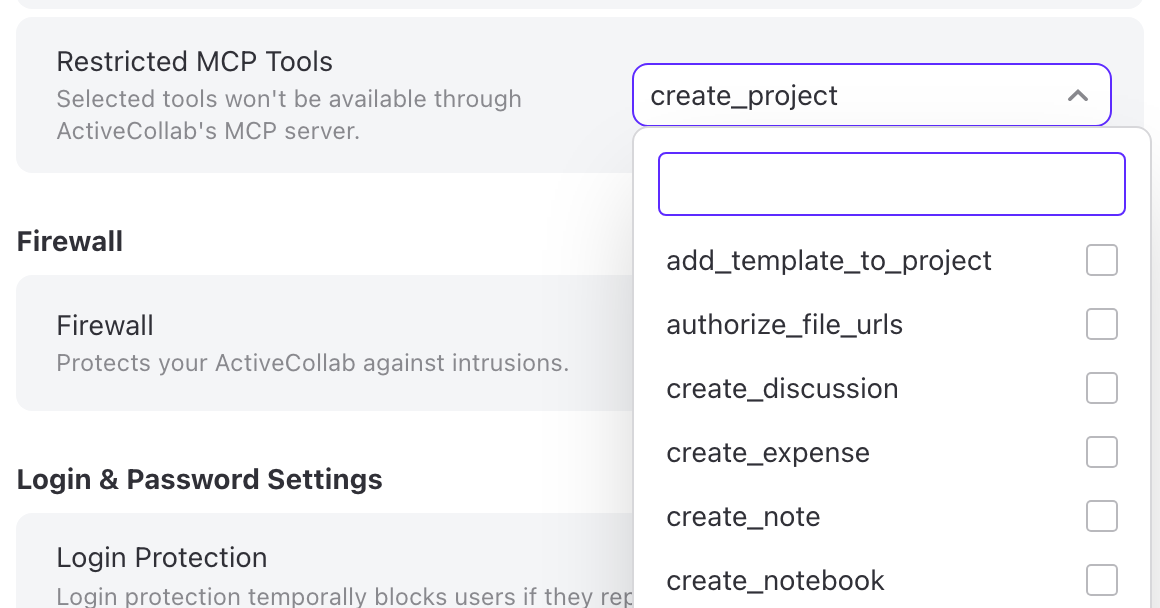
Choose which MCP tools AI agents can use. Enable only the actions you trust, and switch the rest off from Security settings.
Owners choose which MCP tools AI agents can use and switch the rest off in System Settings, under Security.
Don't want agents to read your notes? Switch off the note tools, and they can't.
Our fully rebuilt macOS and Windows desktop apps are here. Built with native OS tools instead of Electron, they’re much smaller and faster. Download them from the Mac App Store or Windows Store.