A portfolio groups projects that belong together, so you can see how the whole group is doing on one page. Project Portfolios is in Early Access on ActiveCollab Cloud.
What Is a Portfolio
A portfolio is a group of projects that you look at as one. Its Dashboard adds up the task numbers from all of its projects, so you do not have to open them one by one.
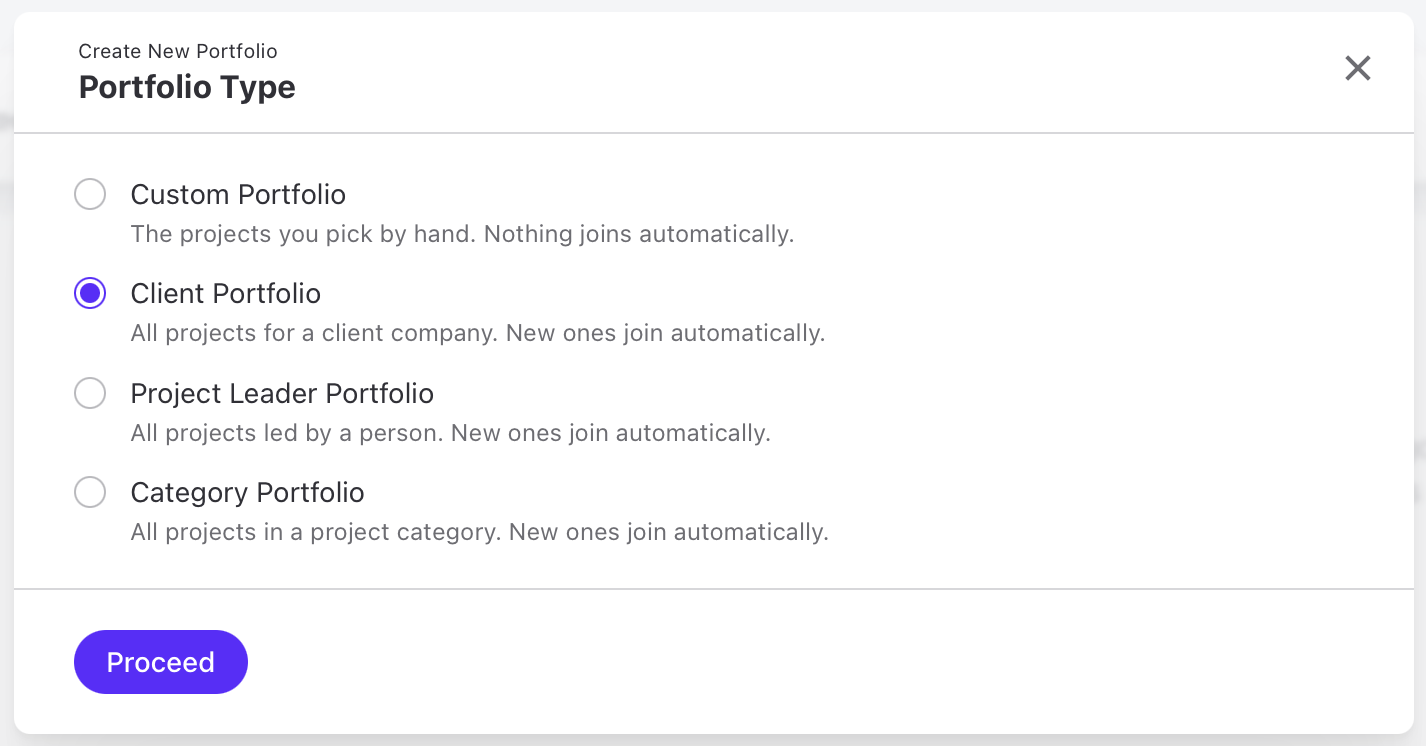
There are four types of portfolios:
- Custom Portfolio: the projects you pick by hand. Nothing joins automatically.
- Client Portfolio: all projects for one client company.
- Project Leader Portfolio: all projects led by one person.
- Category Portfolio: all projects in one project category.
Client, Project Leader, and Category portfolios collect matching projects on their own. When a new project gets that client, leader, or category, it joins the portfolio. When a project no longer matches, it leaves.
A project can be in more than one portfolio. Adding a project to a portfolio does not move it or change it, and the project stays in your project list.
Who can use portfolios
Owners can use portfolios, and so can Members in your own company who have the permission to start projects. Clients, Members without that permission, and Members from other companies cannot see them.
Who sees a portfolio
When you create a portfolio, you choose its visibility:
- Visible to Everyone: anyone who can use portfolios sees it.
- Visible Only to Me: nobody else sees it in their Portfolios list. Owners can still open it from its link.
Each person sees numbers only for the projects they can access. Two people can open the same portfolio and see different totals.
How To Create a Portfolio
You create a portfolio in two steps: choose its type, then fill in its details.
- Go to Projects and open the Portfolios tab.
- Click the New Portfolio button. If you have no portfolios yet, click Create Portfolio.
- On the Portfolio Type step, choose Custom Portfolio, Client Portfolio, Project Leader Portfolio, or Category Portfolio.
- Click Proceed.
- On the Portfolio Details step, choose what goes into the portfolio:
- For a Custom portfolio, pick the projects in Projects.
- For a Client portfolio, choose a client in Client.
- For a Project Leader portfolio, choose a person in Project Leader.
- For a Category portfolio, choose a category in Category.
- In Name, enter a name for a Custom portfolio. For a Client, Project Leader, or Category portfolio, the name is filled in from your choice, and you can change it.
- Under Visibility, choose Visible to Everyone or Visible Only to Me.
- Click Create Portfolio.
Note
The project picker for a Custom portfolio lists active projects only.
The Portfolios List and Health
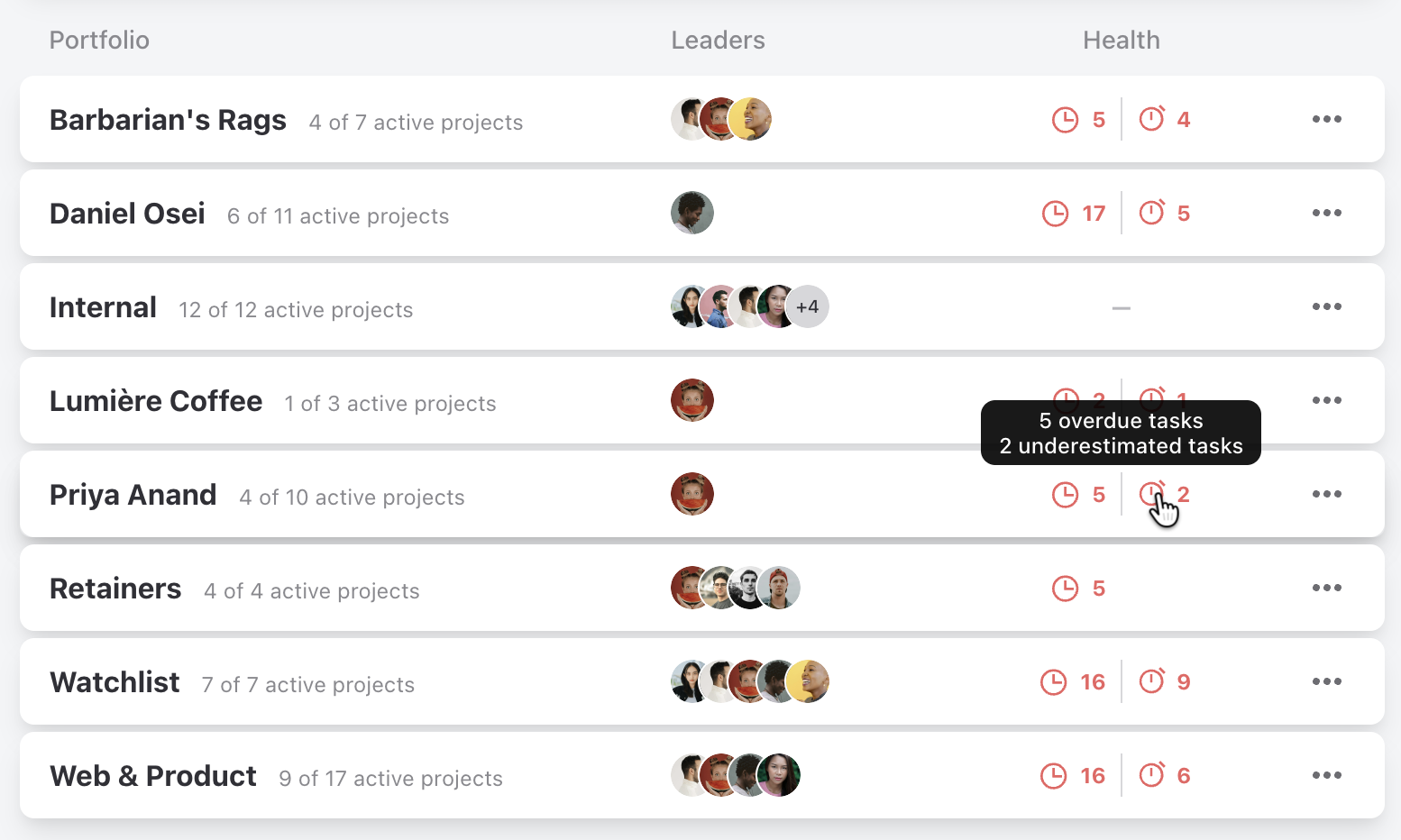
The Portfolios tab in Projects lists the portfolios visible to everyone and the ones you made visible only to yourself. Each row shows:
- Portfolio: the name, and how many of its projects are active, for example "3 of 5 active projects".
- Leaders: the leaders of its active projects.
- Health: two counts of open tasks that need attention.
The two health counts, shown in red:
- Overdue tasks (clock icon): open tasks past their due date.
- Underestimated tasks (stopwatch icon): open tasks whose tracked time is over their estimate.
When a portfolio has neither, the column shows a dash. Hover over the counts to see what each one means. Click a row to open the portfolio.
Note
The underestimated count needs Task Estimates and Time Tracking turned on.
The Portfolio Dashboard
A portfolio has two tabs, Dashboard and Projects. When you open a portfolio, you see its Dashboard. All numbers come from the portfolio's projects that you can access.
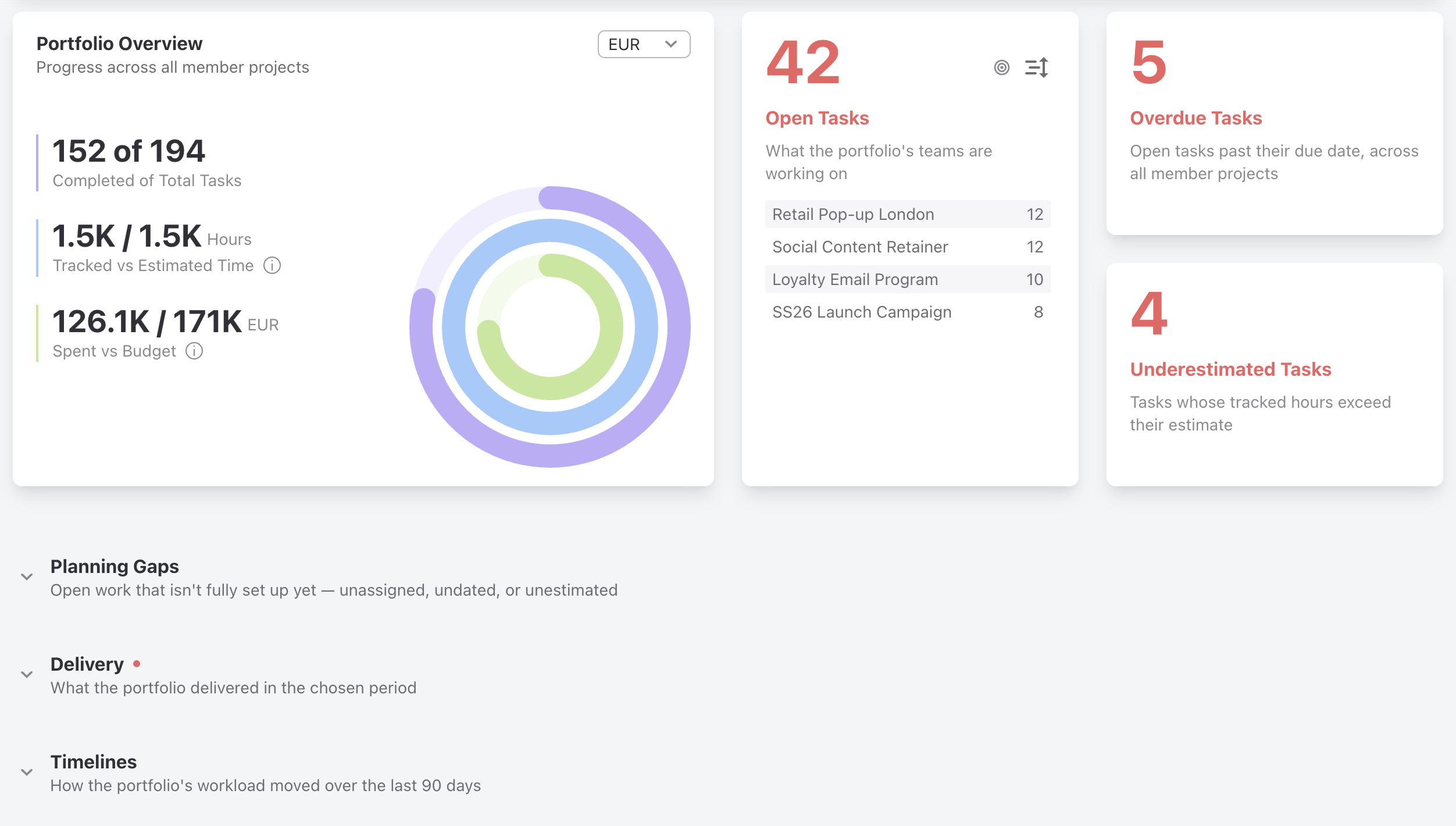
The top row shows:
- Portfolio Overview: completed tasks out of all tasks, tracked time against estimated time, and money spent against budget.
- Open Tasks: the open tasks, grouped by project, client, or assignee.
- Overdue Tasks: open tasks past their due date.
- Underestimated Tasks: tasks whose tracked hours are over their estimate.
Spent vs Budget in Portfolio Overview counts the portfolio's projects that have Time and Expense Tracking and Budgeting turned on, with a Fixed Price or Time and Expenses budget type. Non-Billable projects are not counted.
- Budget is the sum of those projects' budgets.
- Spent is the cost of billable time and billable expenses on those projects.
The amounts are in one currency. When the projects use more than one currency, choose the currency in the top right corner of the card, and only projects in that currency are counted. When spent is over budget, the value turns red. Hover over the value to see both amounts in full.
If your plan does not include budgeting, if budgeting is turned off, or if both time tracking and expense tracking are turned off, Spent vs Budget shows sample data, a lock icon, and an Upgrade Your Plan link.
Below the top row, the Dashboard has three groups:
- Planning Gaps: open work that is not fully set up yet. It counts tasks with no assignee, tasks without a due date, and tasks without an estimate.
- Delivery: what the portfolio delivered in the chosen period. It shows completed tasks, the share completed on time and on estimate, estimate accuracy, the median time to completion, and the median delay of late tasks.
- Timelines: how the workload moved over the last 90 days, with the number of open tasks and new tasks against completed tasks.
To change the period for Delivery, use the Period control next to the group title. You can choose a week, month, quarter, or year, current or last. The default is This Month.
Click a group title to collapse or expand it. ActiveCollab remembers which groups you collapsed and which period you chose, for you only. Other people keep their own settings.
Note
Tiles that use estimates or tracked time need Task Estimates and Time Tracking turned on.
How To Set Targets
Targets tell you when a portfolio slips. When you set a target, the matching value on the Dashboard turns green when it meets the target and red when it misses it.
You can set five targets:
- Completed on Time: the share of completed tasks with a due date that met it, in percent. It meets the target at or above the value.
- Completed on Estimate: the share of completed tasks with an estimate that stayed within it, in percent. It meets the target at or above the value.
- Estimate Accuracy: tracked hours against estimated hours on completed tasks. It meets the target at or below the value.
- Median Days to Completion: the median time from created to completed, in days. It meets the target at or below the value.
- Open Tasks: the most open tasks you want in the portfolio. It meets the target at or below the value.
To set targets:
- Open the portfolio.
- On the Dashboard, click Targets.
- Enter a value for each target you want. Leave the others empty.
- Click Set Targets.
The Targets button shows how many targets are set. A target icon on a tile shows its target when you hover over it. When you collapse a group that holds a missed target, a red dot shows next to the group title.
Note
Only the person who created the portfolio and Owners can set targets.
How To Add and Remove Projects
The Projects tab of a portfolio lists its projects in two groups, Active Projects and Completed Projects. Use Sort to order them by Name, Activity, or Creation Date.
You can add and remove projects by hand only in a Custom portfolio. Client, Project Leader, and Category portfolios collect their projects on their own.
To add projects to a Custom portfolio:
- Open the portfolio and go to the Projects tab.
- Click the Add Projects button.
- Pick the projects.
- Click Add Projects.
To remove a project from a Custom portfolio:
- Open the portfolio and go to the Projects tab.
- Click Remove from Portfolio on the project's row.
- Click Remove to confirm.
Removing a project from a portfolio does not change the project. It stays as it is, in your project list and in any other portfolio.
Note
Only the person who created the portfolio and Owners can add or remove projects.
How To Edit, Archive, and Delete a Portfolio
You manage a portfolio from its row in the Portfolios tab. Only the person who created the portfolio and Owners can edit, archive, or delete it.
Edit a portfolio
- In the Portfolios tab, click the three dots on the portfolio's row.
- Click Edit.
- Change the name, the visibility, or what goes into the portfolio. In a Client, Project Leader, or Category portfolio, you can choose a different client, leader, or category. In a Custom portfolio, you can change the projects.
- Click Save Changes.
You cannot change the type of a portfolio.
Archive a portfolio
- Click the three dots on the portfolio's row.
- Click Archive, then Archive again to confirm.
To restore an archived portfolio:
- In the Portfolios tab, click Tools.
- Click Archived Portfolios.
- Click the three dots on the archived portfolio's row.
- Click Restore from Archive.
Note
Archived Portfolios shows in Tools only when at least one portfolio is archived.
Delete a portfolio
- Click the three dots on the portfolio's row.
- Click Delete, then Delete again to confirm.
The portfolio goes to Trash and stays there for 30 days. Its projects do not change. To bring it back, open Trash and click Restore.
When a client, leader, or category goes away
A Client, Project Leader, or Category portfolio needs its client, leader, or category. When that goes away, the portfolio becomes a Custom portfolio and keeps the projects it had at that moment. This happens when:
- the client company is archived or deleted,
- the project leader is archived or deleted, or their role changes to Client,
- the project category is deleted.
From then on, new projects do not join on their own. You can add and remove projects by hand.