Move tasks and projects into ActiveCollab from a spreadsheet file or from text you paste. The import creates everything in one background job and emails you the result.
Files You Can Import
You can upload a file or paste text.
- Files: CSV, TSV, TXT, XLS, XLSX, and ODS, up to 5,000 rows and 10 MB.
- Pasted text: up to 5,000 lines and 100 columns. Paste rows from a spreadsheet, or one task name per line.
ActiveCollab finds the separator (comma, semicolon, or tab) and the text encoding for you. In a spreadsheet file, only the first visible sheet is read.
Note
When the first line of your file holds data and not column names, turn off First line is a header in the preview. The columns then get numbers.
How To Import Tasks Into a Project
Use this when all tasks go to one project that already exists.
- Open the project and go to its tasks.
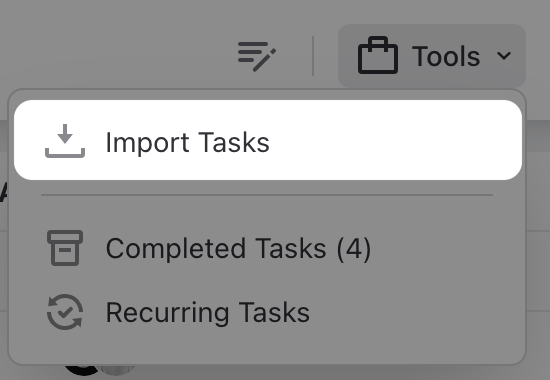
- Click Tools, then Import Tasks.
- On the Upload File tab, add your file. Or open the Paste Text tab and paste your rows.
- Check the preview and click Continue.
- Match the columns to task fields and click Continue.
- If some people or labels do not match, choose what each one becomes and click Continue.
- Check the summary on the Review step and start the import.
- Click Start Import to confirm.
Note
You need permission to add tasks to the project. To import a Task List column, you also need permission to add task lists.
How To Import Projects
Use this when every row in your file is a project. The import creates one new project for each row.
- Go to Projects.
- Click Tools, then Import Projects & Tasks.
- Choose Projects and click Continue.
- On the Upload File tab, add your file. Or open the Paste Text tab and paste your rows.
- Check the preview and click Continue.
- Match the columns to project fields and click Continue.
- Check the summary on the Review step and start the import.
- Click Start Import to confirm.
Note
The Projects page shows the import only to the Owner and to Members who can manage projects.
Note
A project label, category, or currency must already exist in ActiveCollab. The import matches them and never creates new ones. A new client company is created only when you have permission to add companies.
How To Import Tasks Into New Projects
Use this when your file holds tasks, and the projects for them do not exist yet.
- Go to Projects.
- Click Tools, then Import Projects & Tasks.
- Choose Tasks and click Continue.
- Upload a file or paste text, and click Continue.
- Choose One project or More than one project.
- For one project, choose New Project and enter its name.
- For more than one project, choose the column with the project names. Each name becomes a new project.
- Match the columns, check the Review step, and click Start Import.
When you create more than one project, Common Fields set the label, category, and client company for all of them. A value in the file wins over a common field.
How To Match Columns
ActiveCollab matches your columns to fields for you. Check each match, and change it where needed. Choose Don't Import for a column you do not need.
Task fields you can import: Task Name, Description, Task List, Assignee, Labels, Start Date, Due Date, Completed On, Estimate, Status, Important, Billable, and Hidden from Clients.
Project fields you can import: Project Name, Description, Client, Project Leader, Members, Category, Label, Budget, Budget Type, and Currency.
- Labels: separate several labels with a comma or a semicolon.
- Dates: when a date can be read two ways, such as 03/04/2026, choose the date format for that column.
- Task lists: a task list that does not exist yet is created. Without a Task List column, all tasks go to the first task list of the project.
Note
A task gets one assignee. Job types are not imported.
How To Match People and Labels
The Match Values step shows only when some people or labels in your file do not match anything in ActiveCollab. Choose what each value becomes.
- People: New virtual user, Leave unassigned, or an existing person.
- Labels: Create a new label, Do not add, or an existing label.
Use Apply to all to make the same choice for every value in the list.
Note
A person who is not on the project is added to it without an invitation. This needs permission to manage people on the project. Without it, the task stays unassigned.
How To Import Subtasks
A row can be a subtask of another row. Map the columns in the Subtask Structure group, and link each subtask to its task in one of these ways:
- By ID, with a Unique ID column and a Parent column.
- By name, with a Parent column that holds the task name.
- By outline level, with an Outline Level column.
- By type, with a Type column that marks each row as a task or a subtask.
A subtask keeps its name, assignee, due date, and status. Subtasks have one level only.
After the Import
The import runs in the background. You can close the window, and ActiveCollab emails you the result.
When the import finishes, you see what it created: tasks, completed tasks, subtasks, task lists, new labels, virtual users, and people added to the project. Rows the import could not use are skipped. Click Download Skipped Rows to get them as a CSV file, fix them, and import them again.
Imported tasks do not notify assignees or subscribers.
All or nothing
When the import fails, nothing is imported, and your project stays as it was before. The screen and the email tell you what went wrong. There is no undo button. To reverse a finished import, delete the imported tasks or projects by hand. Check the Review step before you start, to avoid this work.
Note
Every import creates new tasks. It does not update tasks that already exist. Comments, attachments, time records, and followers are not imported.