The Availability report shows how many days off each person has, for each type of time off, in the period you choose. Use it to see who was off, who is off now, and who will be off soon.
Owners can open the report. Managers from the owner company can open it when they have access to reports. The report is available only when Availability is turned on. You see only the people that you can see elsewhere in ActiveCollab.
How days are counted
All values in the report are work days. These days are not counted:
- Days outside your workweek.
- Company days off.
- Days on which the person has 0 capacity.
When time off starts before the period or ends after it, only the days inside the period are counted.
People with no counted days in the period do not show in the report. Archived people show. People in Trash do not show.
How to open the report
- Go to Reports and open All Reports.
- In the Time group, click Availability.
The report opens for the current year.
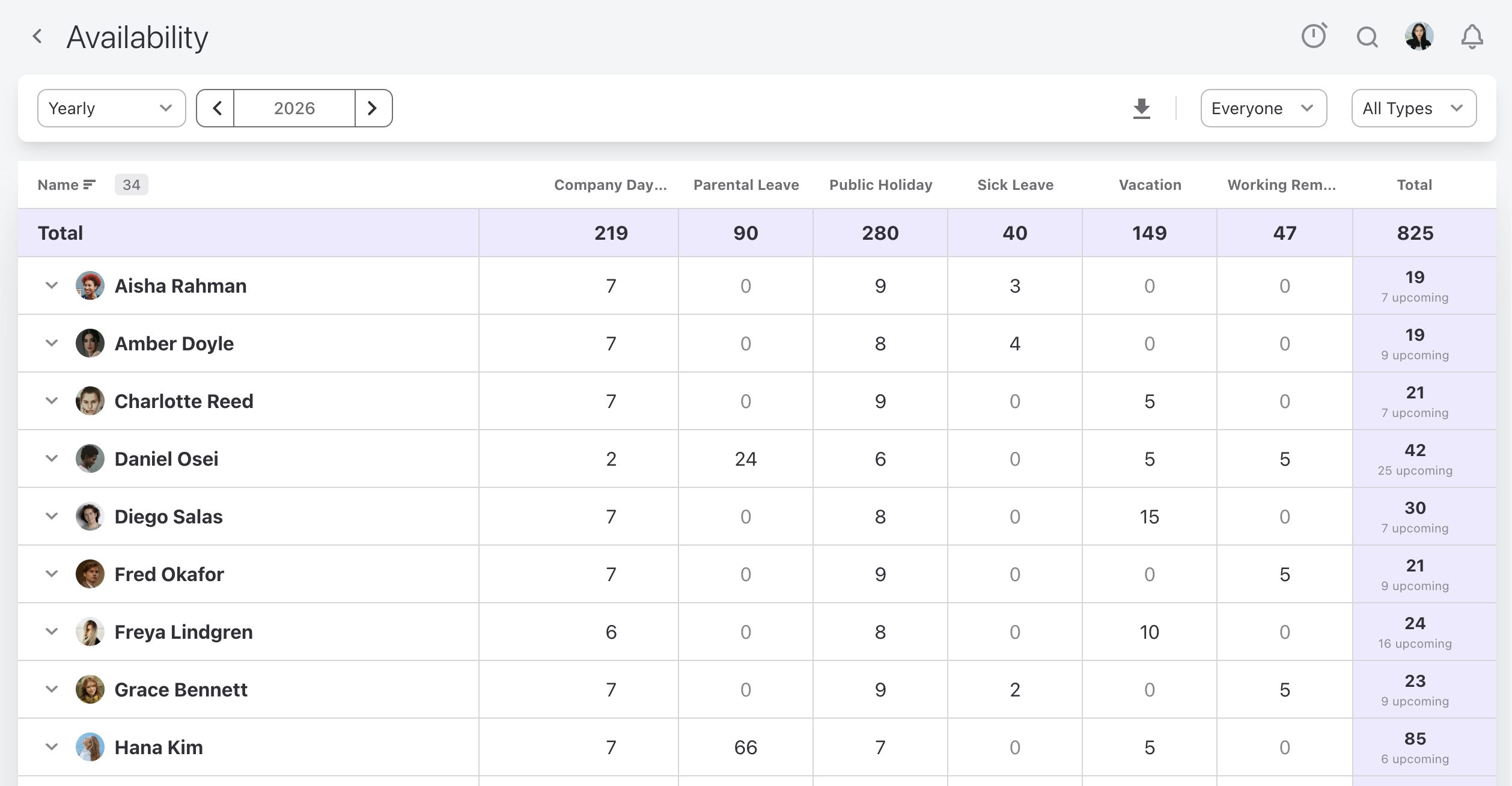
How to change the period
- In the period menu at the top left of the report, choose Monthly, Quarterly, Yearly, or Custom.
- Use the arrows on either side of the period to go to the previous or the next one.
- For Custom, pick the first and the last day of the period. A custom period can be up to 366 days long.
How to filter by people and type
- Open the people filter, which shows Everyone by default, and select the people you want to see. To select the members of a team, pick the team in the team picker.
- Open the type filter, which shows All Types by default, and select the types of time off you want to see.
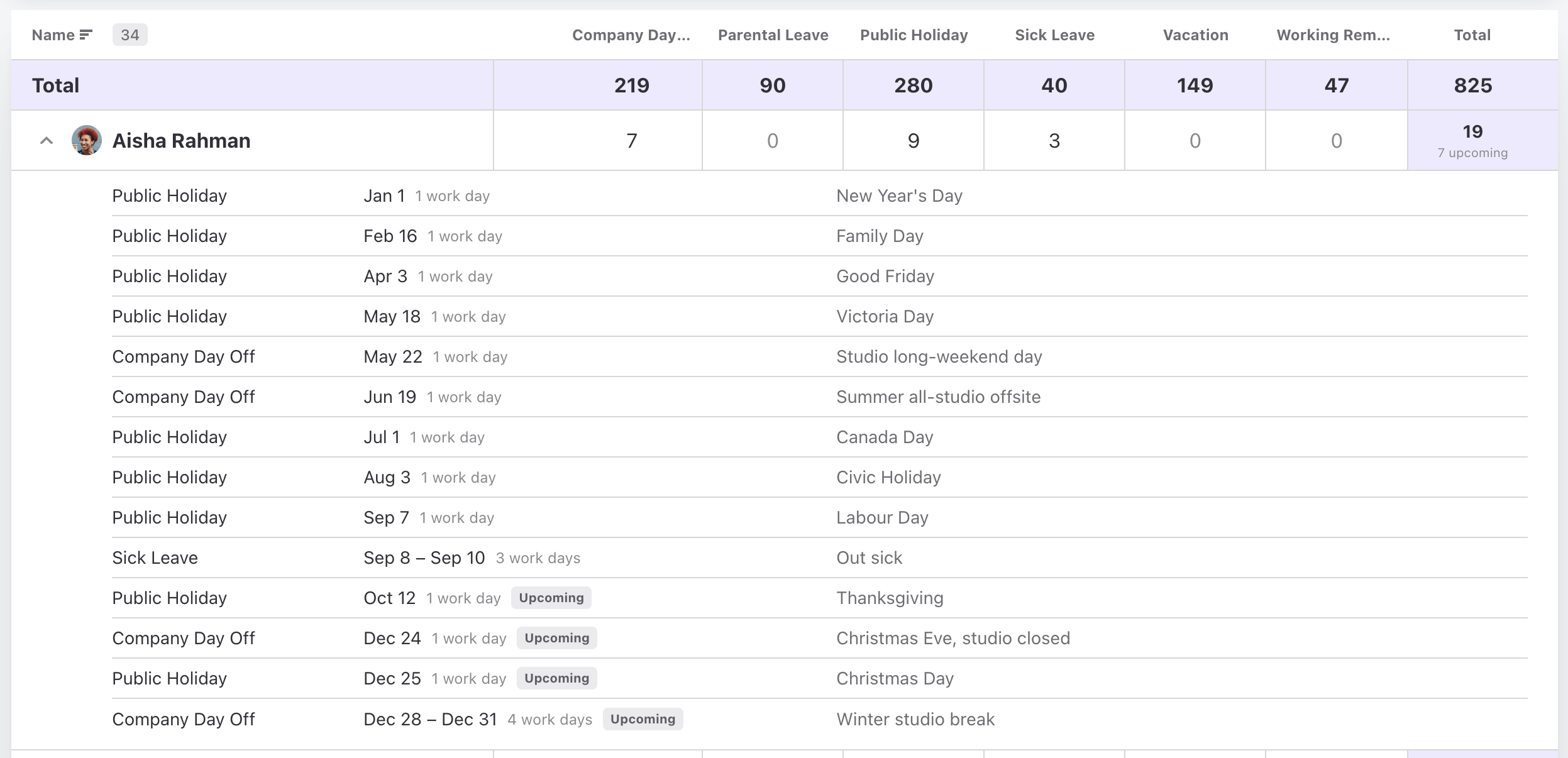
How to see the time off behind a total
- Click the arrow next to a person's name to open the row.
- Review each time off in the row: its type, its dates with the number of work days, and its message. Time off that is happening now has a Current chip. Time off that has not started yet has an Upcoming chip.
When a total includes time off that has not happened yet, the line "N upcoming" under the total shows how many of those work days are still ahead.
How to export the report
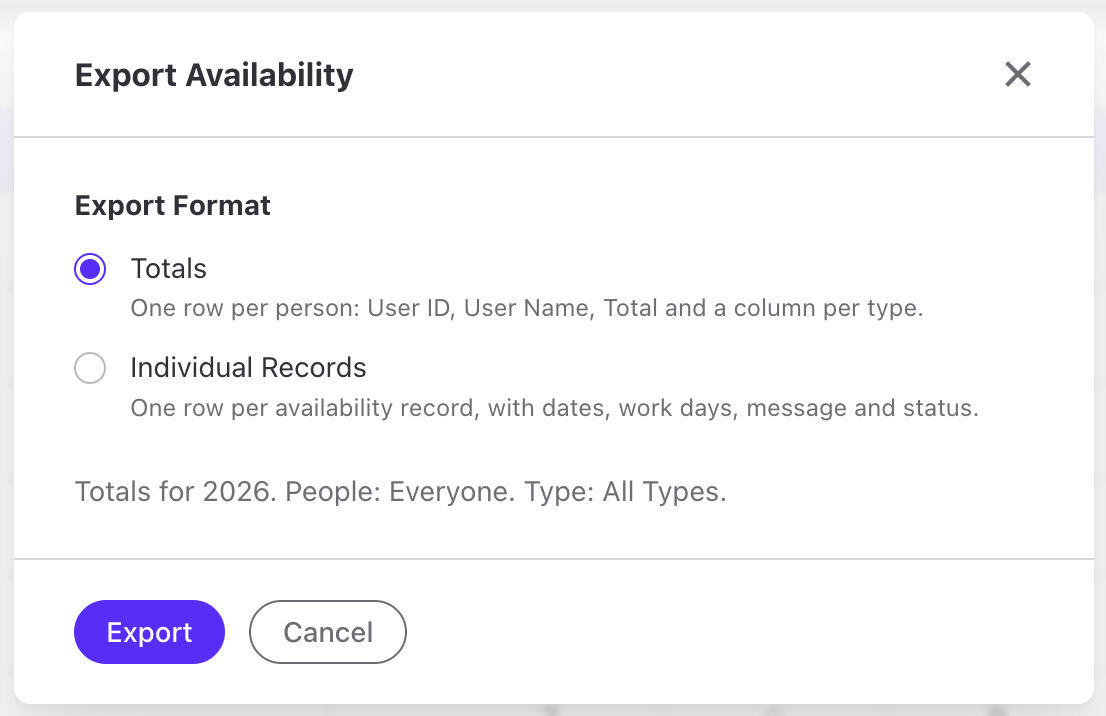
- Click the download icon at the top of the report. The Export Availability dialog opens.
- Under Export Format, choose what to export:
- Totals: one row per person, with User ID, User Name, Total, and one column for each type of time off.
- Individual Records: one row per time off, with its dates, type, work days, message, and status (Past, Current, or Upcoming).
- Click Export. ActiveCollab saves the report as a CSV file.
The export uses the same period and filters as the report on your screen. The dialog lists them above the buttons.
Note
The totals in this report can differ from the totals on a person's profile. The report does not count days on which the person has 0 capacity, and the profile does not check personal capacity.
To ask an AI assistant about time off, see Use Availability with AI agents.
Use Availability with AI agents
When Availability is turned on, an AI agent connected through MCP can tell you who is off and add time off for you or your team.
For example, you could ask:
- Who is off this week?
- How many days off did each person take this year?
- Add a vacation for Anna from July 7 to July 18.
- How many hours can Mark work next month?
The agent uses these tools:
- Get the days off per person and type of time off for a period with
get_availability_report. - List individual time off with
filter_availability_records. - Add time off with
create_availability_record. - Change existing time off with
update_availability_record. - Check the work days and hours a person can work in a period with
get_work_schedule. - Find the types of time off with
availability_typesin the list tool.
To add or change time off, the token needs write access.
An AI agent cannot delete time off. To delete time off, use ActiveCollab. See How can I delete my Availability? and How can I Delete an Availability for a different user?.