Before any task can show code, an Owner connects your GitHub or GitLab account to ActiveCollab. This is a one-time setup that you do under Apps & Integrations. After it is done, you add individual repositories to projects.
Setting up a connection has three parts:
- Connect the provider, GitHub or GitLab.
- Map users, so ActiveCollab knows who each GitHub or GitLab user is.
- Find your repositories and, on GitLab, turn on their events.
To start, select your avatar in the top right, then select Apps & Integrations.
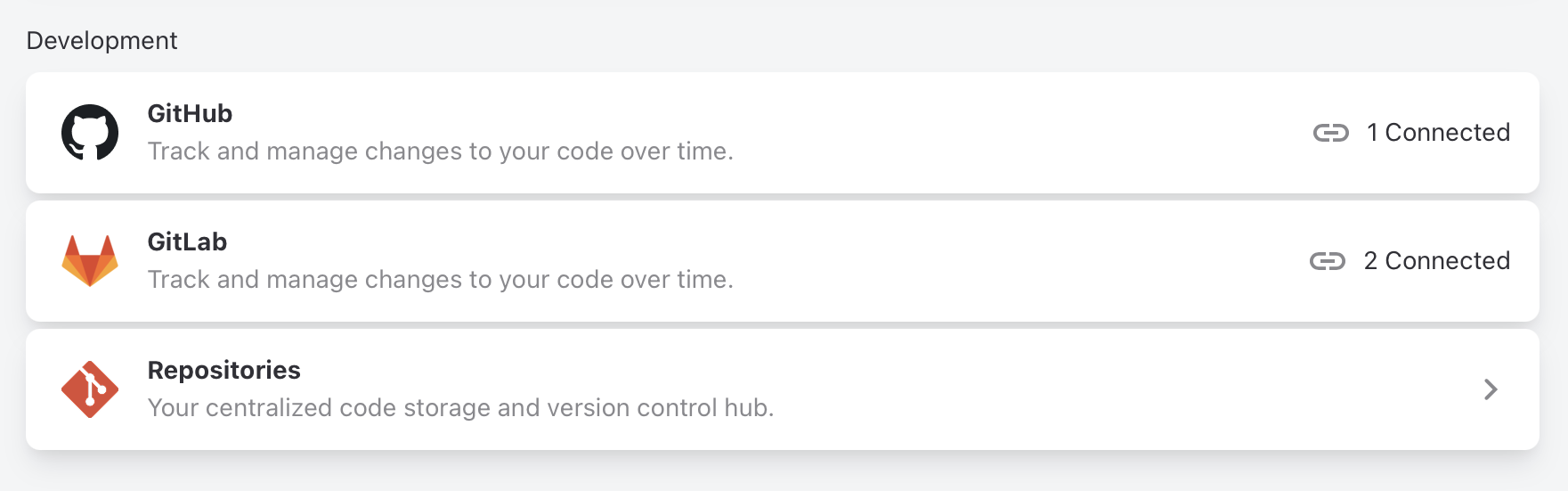
When the connection is ready, add a repository to a project. See Adding a repository to a project.
Connect a GitHub account
GitHub works on github.com, through a GitHub App.
- Select your avatar in the top right, then Apps & Integrations.
- Select GitHub, then follow the steps to authorize the GitHub App.
- Choose the GitHub organization to connect, and choose which repositories the app can access.
GitHub sets up the webhooks it needs on its own. The organization now appears as a connection under Apps & Integrations.
Next, map your users. See Map users.
Connect GitLab
GitLab works on gitlab.com and on a self-managed GitLab server. GitLab connects with an access token.
To connect gitlab.com:
- Select your avatar in the top right, then Apps & Integrations.
- Select GitLab.
- Enter a GitLab Access Token, then connect.
To connect a self-managed GitLab server, also give the server address, for example https://gitlab.example.com, together with the access token.
ActiveCollab uses provider-native wording where it helps. On GitLab you see "merge request" instead of "pull request", and "pipelines" instead of "checks".
Note
You can replace the access token later without losing linked data. See Replace an expired GitLab token.
Map users
ActiveCollab needs to know which ActiveCollab user each GitHub or GitLab user is. This lets it show who did what, and it lets commands such as /assign and /spend act as the right person. Without a mapping, that user's activity is not attributed and their commands do not run.
- Open the connection under Apps & Integrations.
- Open the connection's user list, from the count of mapped users.
- Match each GitHub or GitLab user to an ActiveCollab user.
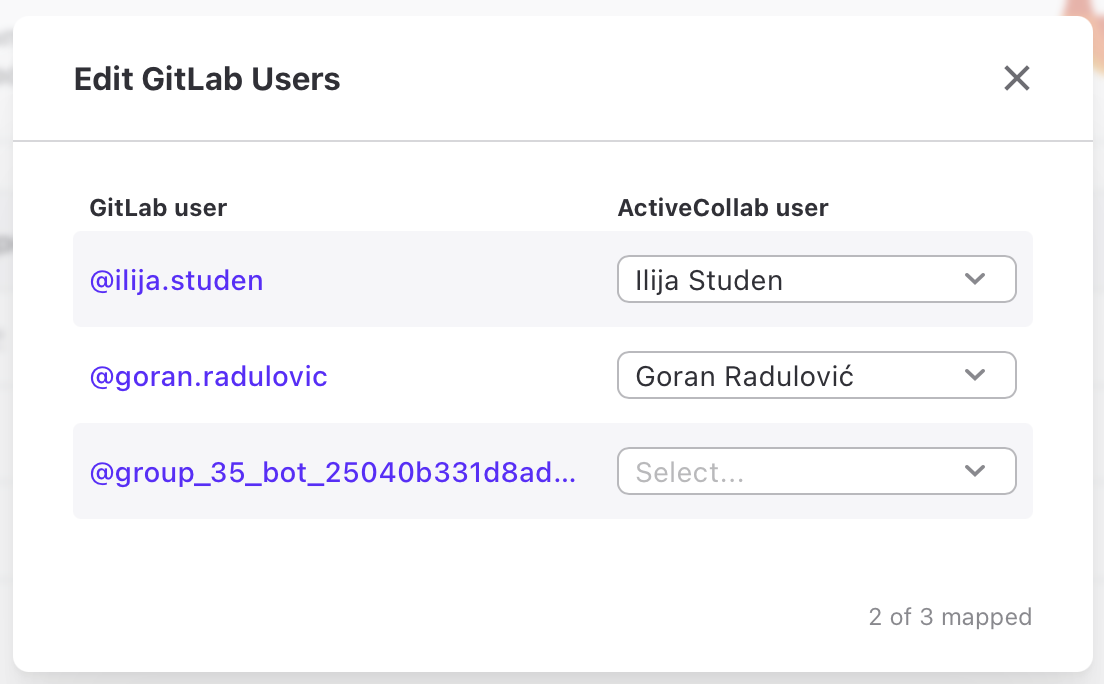
Map users for both GitHub and GitLab connections.
Find your repositories and turn on events
After a connection is ready, open the Repositories page under Apps & Integrations. It lists the repositories from your connections.
On GitHub, webhooks are set up automatically, so nothing more is needed here.
On GitLab, webhooks are not created automatically. Turn on each repository whose events you want ActiveCollab to receive, with the checkmark next to the repository.
From the Repositories page you can also add a repository to a project with Connect Project. This is the account-side counterpart to Connect Repository on the project. See Adding a repository to a project.
To check what a provider sent, open Webhook Logs from the connection's options menu.
Who can connect
Connecting an account, mapping users, and viewing Webhook Logs need the permission to manage integrations. This is an Owner, or a Project Manager from the owner company.
To add a repository to a project, you also need edit rights on that project:
- An Owner can add a repository to any project.
- A Project Manager can add a repository only to a project they lead or created.
Viewing linked source on a task needs only access to the project. Any member with project access sees the Source Code section. Clients see it only where the project turns on client visibility. See Show code progress to clients.