A repository from a connected account is added to a project so its events show on that project's tasks. Linked issues, branches, and pull or merge requests then appear on the task and stay current on their own.
First connect your GitHub or GitLab account. See Connecting GitHub and GitLab.
You can add a repository to a project from two places:
- The Repositories item in the project options menu (the "…" menu in the project header), with Connect Repository.
- The Connect a repository link inside the Link Branch or Pull Request dialog on a task.
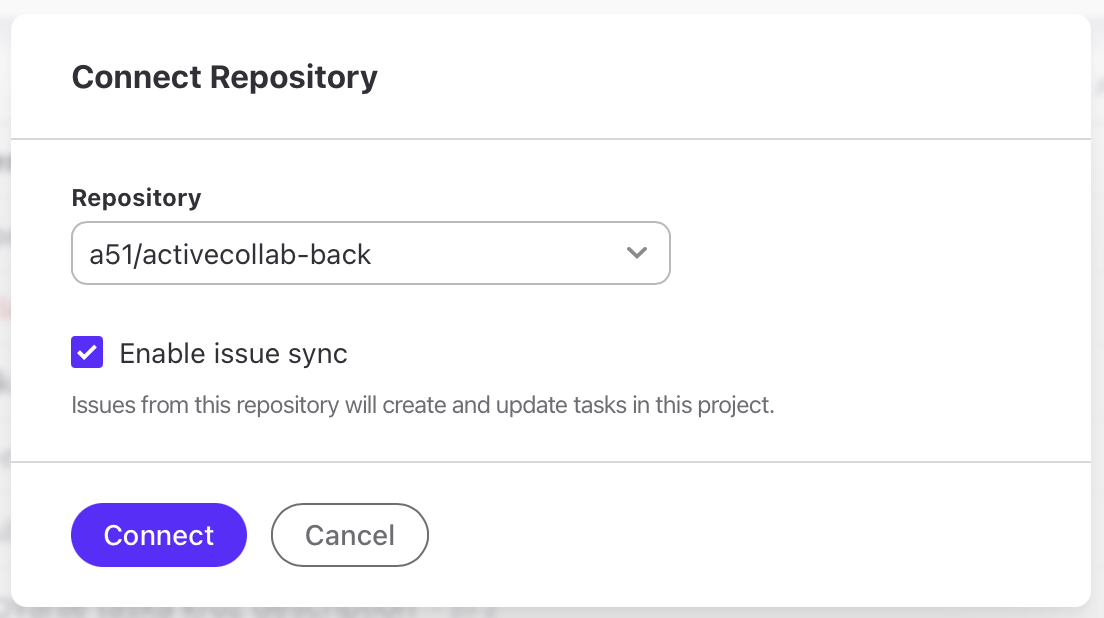
Add a repository to a project
- Open the project and select the options menu ("…") in the project header.
- Select Repositories, then Connect Repository.
- In the Repository list, choose the repository you want.
- To let issues create and update tasks, select Enable issue sync.
- Select Connect.
The repository is now added to the project. New branches and pull or merge requests that reference a task appear on that task.
The same dialog works for GitHub and GitLab. On GitLab you see "merge request" and "pipelines" in place of "pull request" and "checks".
Note
Only repositories from a connected account appear in the list. If the one you need is missing, an Owner connects the account first. See Connecting GitHub and GitLab.
Turn on issue sync
With issue sync on, issues from a connected repository create and update tasks in the project.
- In the Connect Repository dialog, select Enable issue sync.
- Select Connect.
You can turn issue sync on for each repository on its own.
Note
If the repository is public, anyone on the provider can open an issue, and every issue becomes a task in the project. ActiveCollab warns you when the selected repository is public and issue sync is on. Restrict who can submit issues before you turn sync on.