Connect a Bitbucket Cloud workspace to see its branches, pull requests, and build status on your tasks, the same way you can with GitHub and GitLab. One connection covers one workspace, and its webhook is set up for you.
To start, select your avatar in the top right, select Apps & Integrations, then select Bitbucket.
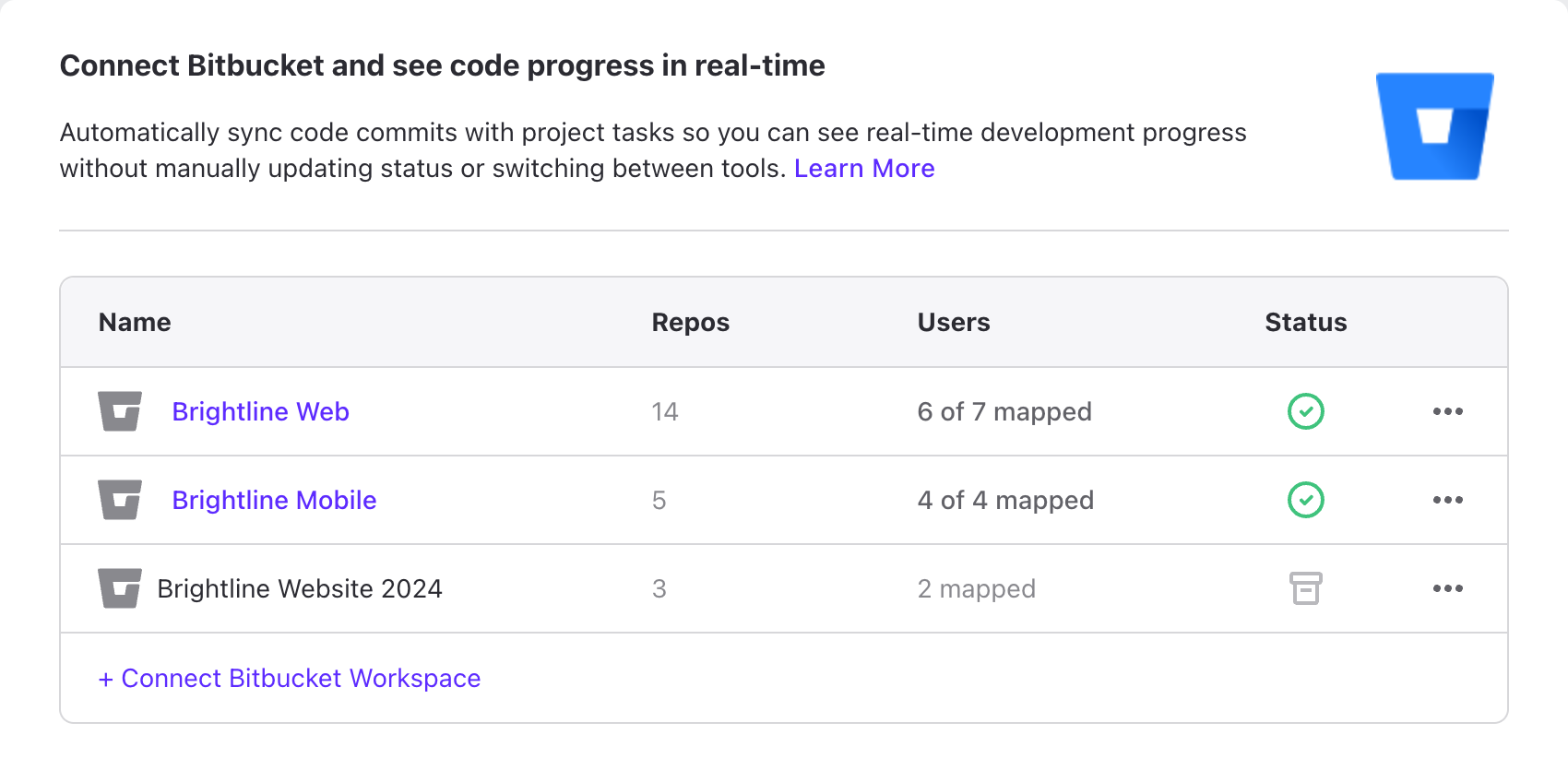
When the workspace is connected, add its repositories to projects. See Adding a repository to a project.
Connect a Bitbucket workspace
An Owner, or a Project Manager from the owner company, connects the workspace. The Bitbucket account you sign in with must be an owner of that workspace.
- Select your avatar in the top right, then Apps & Integrations.
- Select Bitbucket, then Connect Bitbucket Workspace.
- Sign in to Bitbucket and approve the access ActiveCollab asks for. See Permissions ActiveCollab asks for.
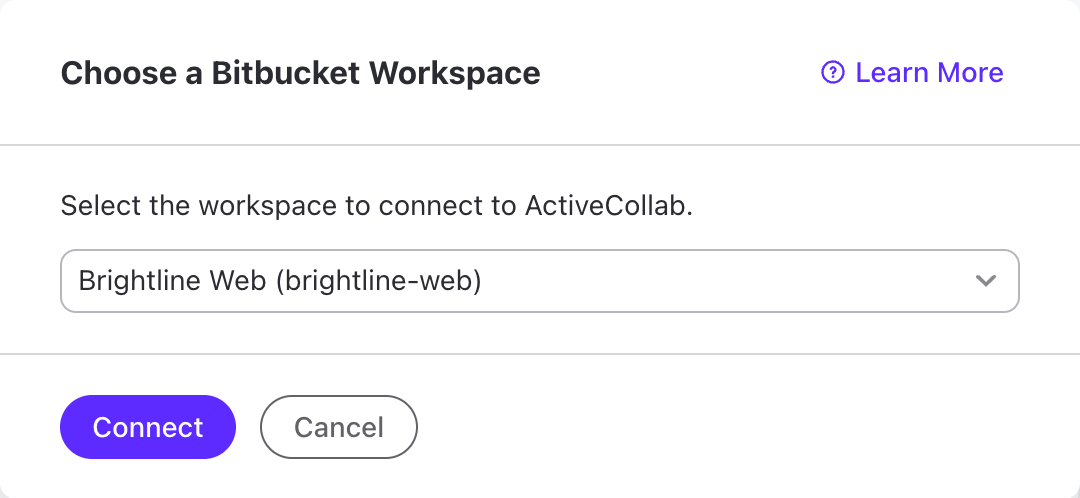
- If you own more than one workspace, choose the one to connect in the Choose a Bitbucket Workspace dialog, then select Connect. When you own only one, ActiveCollab connects it right away.
ActiveCollab lists the workspace's repositories and creates one webhook for the whole workspace, so there is nothing to turn on per repository. The workspace then appears in the list on the Bitbucket page.
ActiveCollab refuses the connection in these cases:
- The account you signed in with is not an owner of the workspace. You see "Only an owner of the Bitbucket workspace can connect it."
- The workspace is a personal workspace. You see "Personal Bitbucket workspaces can't be connected. Use a team workspace."
Connecting a workspace that is already connected reconnects it. It does not add a second connection.
Next, match Bitbucket users to ActiveCollab users. Bitbucket users appear by their display name and are matched by their Bitbucket account. Select the user count in the Users column to open Edit Bitbucket Users. See Map users.
To remove a workspace, select Disconnect in its menu. ActiveCollab removes the webhook and the links between the workspace's code and your tasks. The access you approved stays in your Bitbucket account until you revoke it there.
Permissions ActiveCollab asks for
When you connect a workspace, Bitbucket shows the permissions ActiveCollab asks for. ActiveCollab uses each of them like this:
- Account: Read. Identify the person who connects, and list the workspaces they own.
- Repositories: Write. Read your repositories, and create a branch from a task.
- Pull requests: Write. Create a pull request from a task, and receive pull request events.
- Webhooks: Read and write. Create, check, and remove the one webhook of the workspace.
- Pipelines: Read. Not used yet. ActiveCollab asks for it now so a later version can show more build detail without asking you to approve again.
If a later version of ActiveCollab needs more permissions, it asks a workspace owner to re-authorize the workspace.
Re-authorize a workspace
Re-authorize a workspace when Bitbucket no longer accepts the access ActiveCollab saved. This happens when someone revokes the access in Bitbucket, or when the saved access goes unused for about three months. ActiveCollab refreshes idle connections to prevent the second case.
You see that a workspace needs it in two places:
- Its status shows a warning: "Bitbucket rejected the saved authorization. Click to re-authorize."
- Its webhook icon says "Bitbucket refused access to the webhook." This happens when the saved access no longer works, for example when the person who connected the workspace is no longer an owner of it.
To re-authorize a workspace:
- Open Apps & Integrations and select Bitbucket.
- Select the warning in the workspace row, or open the workspace menu and select Re-authorize. For an archived workspace, select Restore.
- Sign in with a Bitbucket account that is an owner of the same workspace.
The workspace keeps its task links, repositories, and history. If the account you sign in with does not own this workspace, you see "Only an owner of the Bitbucket workspace can connect it."
The webhook icon in the workspace row shows whether Bitbucket can deliver events. Hover it to see the problem, for example "Webhook not found." or "Webhook deliveries are failing." When the icon says "Click to reconnect.", select it and confirm Reconnect to create the webhook again. When the icon says "No webhook yet. Click to create one.", select it and confirm Create.
Sync Now in the workspace menu fetches the code activity that ActiveCollab missed, for example while the webhook was broken. See Sync Now. Refresh on the Repositories page updates the list of repositories in the workspace, for example after you create a new repository in Bitbucket.
Limitations
- Only Bitbucket Cloud is supported. Bitbucket Data Center and Bitbucket Server are not.
- Bitbucket works only on ActiveCollab Cloud accounts.
- There is no issue sync. Bitbucket removed issues in 2026.
- Bitbucket does not resend missed webhook deliveries and keeps no delivery history. Webhook Logs show what ActiveCollab received. Use Sync Now to catch up on what was missed.
- Build status shows one entry for each Bitbucket build status, not one for each Pipelines step. Deployments are not shown.
- Bitbucket limits how many requests ActiveCollab can make for the person who connected the workspace: 1,000 an hour by default, and more on larger Standard and Premium workspaces. The limit is shared with that person's own use of Bitbucket. Sync Now and Refresh can stop early when the limit is reached. Try again later.