The Source Code section shows the code behind a task and its state. It appears only when something is linked. An empty task shows nothing.
The section updates in real time. Pushes, pipeline runs, deploys, and new or removed links appear within seconds, with no reload.
The Source Code section
The Source Code section sits on the task, between the subtasks and the discussion. It lists the linked issues, branches, and pull or merge requests, one row per item.
The list has two tiers:
- Open work at the top: open issues, active branches, and open pull or merge requests.
- Completed work below, collapsed by default: closed issues, merged or closed pull requests, and merged or deleted branches. Select Show more completed elements to expand it.
Each row shows the repository and when the item last changed. A branch or a pull request also shows commits, the head commit, and the change size. A pull or merge request shows a status label when it is merged or closed. A branch shows a label when it is merged or deleted.
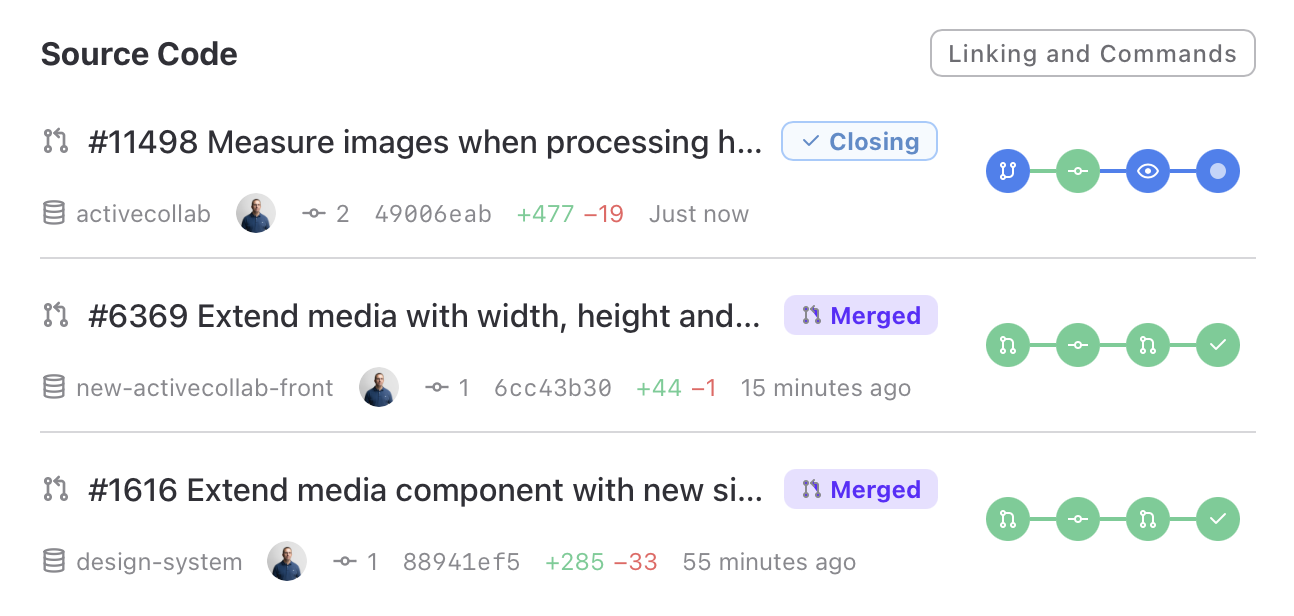
From the section header you can also:
- select Link Branch or Pull Request to add a link,
- select Linking and Commands to see how to link and act on the task,
- select Unlink to remove issues, branches, and pull or merge requests when you can edit the task. Commits cannot be unlinked.
See Unlink for the full steps.
The pipeline graph
Each branch and pull or merge request shows a pipeline graph on the right of its row. The graph shows the stages of the work, from the branch through commits, the pull or merge request, the build, and the deploy.
A healthy task is quiet. A stuck task is loud. A failed check, a stalled stage, or a merge conflict shows at a glance, so you can find the item that needs attention without opening anything.
Each stage has its own color and icon, so the state is clear without relying on color alone. A merge conflict has its own state, separate from a failed build. ActiveCollab reads mergeability from the provider directly, so a pull or merge request with a conflict does not sit there looking clean.
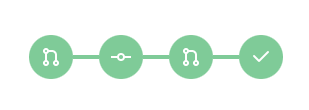
Select the pipeline graph to open the full history. See Pull request and branch history.
Pull request and branch history
Select the pipeline graph on any row to open its history. A pull or merge request row opens Pull Request History. A branch row opens Branch History.
The history is a timeline, newest first. It shows each event with a short line and when it happened, for example a branch created, commits pushed, a review requested, a build passed or failed, and a deploy.
The dialog updates in real time while it is open. A success shows a green check. A failure shows a red "Failed" label.
If the repository has no build or deploy pipeline, the timeline ends with a line that says so.
This dialog is for reading only. Close it with the close button, the Esc key, or a click outside.
The Source column
The Source column lets you scan code progress across a project task list. It is available in List view when the project has a connected repository. The column is off by default. Open the list view settings to show, hide, or reorder it.
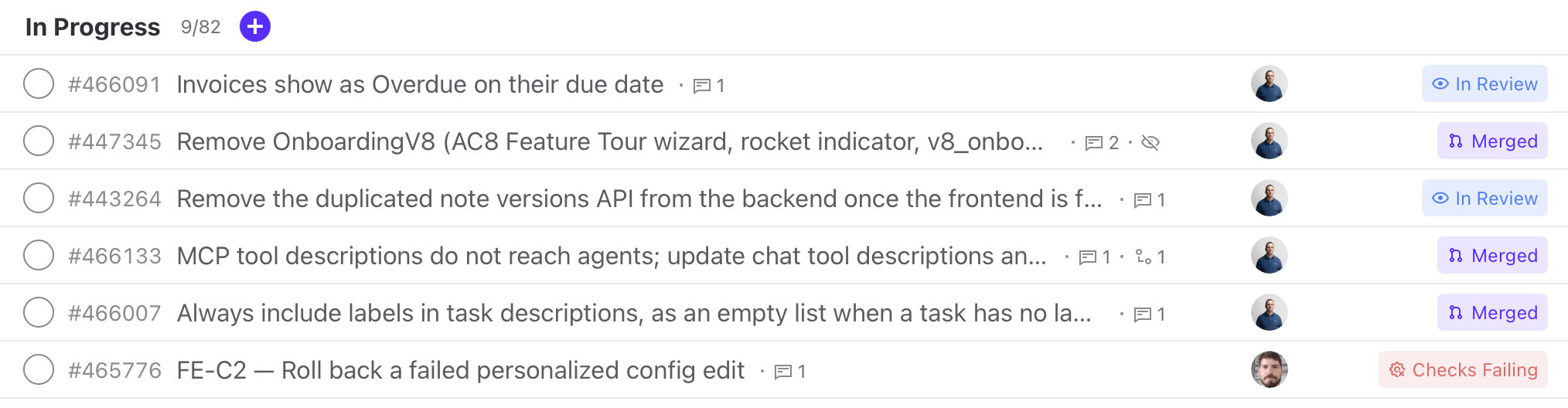
An empty cell means that nothing is linked to the task. If only issues are linked, the cell shows the number of issues. Otherwise, it shows one badge for the most urgent linked status in this order:
- Checks Failing
- In Review
- In Progress
- Deployed
- Merged
- Closed
- Linked
Point to a filled cell to see the branch, commit, and pull request counts, status breakdowns, and number of linked issues. The column updates as linked work changes.
Select a filled cell to open the read-only Source Code dialog. You cannot link or unlink items from this dialog.
If you can collaborate on the project, an empty cell has a Link button that opens the Link Branch or Pull Request dialog.
Clients see the Source column only when the project allows clients to see source code information.