A link connects a task to a branch or a pull or merge request. Once a link exists, the work shows in the task's Source Code section and stays current on its own.
Links are weak and many-to-many. One branch or pull request can reference several tasks, and one task can link to several branches or pull requests. There is no ownership or nesting.
You can link in two ways:
- Automatically, by naming the task in a branch name, a pull request title, a commit message, or a description.
- By hand, from the Link Branch or Pull Request action in the task's Source Code section.
Automatic linking
You can link a task without opening ActiveCollab. Name the task where the provider sends the text to ActiveCollab, and the link forms on its own.
You can name a task in:
- a branch name,
- a pull or merge request title,
- a commit message,
- a pull or merge request description.
Use any of these forms to reference a task:
AC-123#123- the task URL.
When you open a pull request from a branch whose name carries a task ID, the pull request inherits the link.
The easiest path is to put the task ID in the branch name, so the link forms the moment you push. See Suggested branch name.
Suggested branch name
ActiveCollab suggests a branch name that already carries the task ID, so the link is correct from the start.
- Open the task and select Link Branch or Pull Request.
- Select New Branch.
- Use the suggested name in the Branch Name field, or change it.
The suggestion follows a pattern that your account can configure. The default pattern is {user}/{id}-{task-slug}, for example jane/4231-add-region-support. The name carries your provider username, the task ID, and a short slug from the task name.
An Owner can change the pattern under System Settings > Projects. The setting shows a full example of the branch name that the pattern produces. If the pattern is blank, ActiveCollab uses {user}/{id}-{task-slug}.

Note
The {id} in the name is the task ID that the automatic linker reads. Keep it in the name so the link forms on push.
Link from the task
You can link from the task when you prefer to do it by hand, or when you want ActiveCollab to create the branch or the pull request for you.
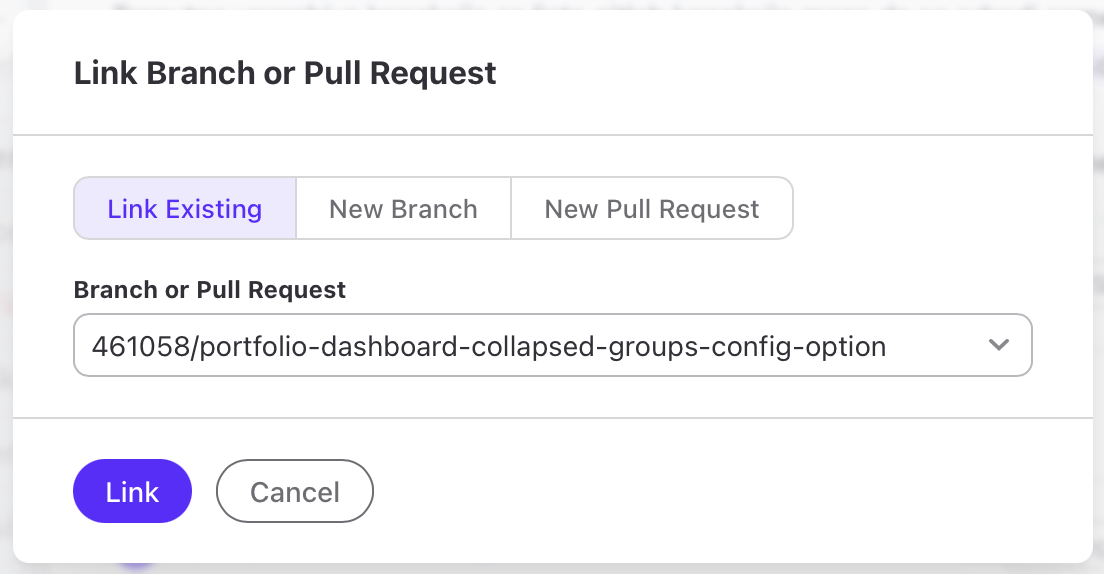
- Open the task and select Link Branch or Pull Request.
- Choose one of the modes:
- Link Existing — link a branch or a pull or merge request that already exists.
- New Branch — create a branch on the provider and link it.
- New Pull Request — open a pull or merge request on the provider and link it.
- Fill the fields for the mode you chose.
- Select the primary action: Link, Create Branch, or Create Pull Request.
Anything you link or create here is linked to the task, whatever its name.
Note
Only repositories connected to the project appear in the Repository list. If the repository you need is missing, select Connect a repository in the dialog. See Adding a repository to a project.
The New Branch and New Pull Request modes appear only when you can create a branch or a pull request in that repository.
Complete a task on merge
You can complete a task when its pull or merge request merges. Add a closing word with the task reference in the pull request title or description, or in a commit message.
The closing words are:
close,closes,closedfix,fixes,fixedresolve,resolves,resolved
For example, Closes AC-123 or Fixes #123.
The task completes when the pull or merge request merges, not when the word appears. A reference without a closing word links the task but does not complete it.
Unlink
If you can edit a task, you can remove its links to issues, branches, and pull or merge requests. You cannot unlink commits.
- Open the task and select Unlink in the Source Code section header.
- Select one or more issues, branches, and pull or merge requests.
- Select Unlink.
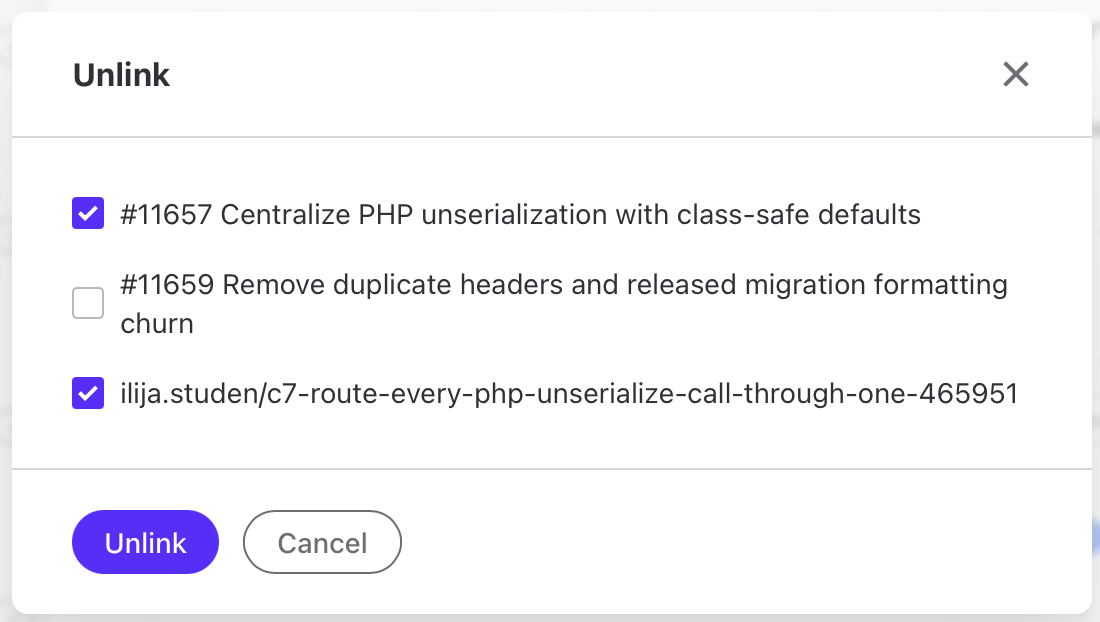
The Unlink button appears only when you can edit the task. It is not available in the Source Code dialog that opens from the Source column.
Unlink removes only the link in ActiveCollab. It does not delete the branch, pull or merge request, or issue on the provider.