How do I use text effects when adding comments in ActiveCollab?
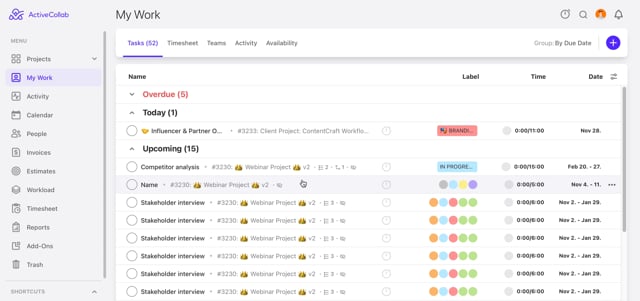
Step 2: Add text
Step 3: Select the portion of text where you want to apply styling
Step 4: Choose one of the available text effects in the editor:
- Bold – highlights important information
- Italic – emphasizes a word or phrase
- Underline – underlines selected text
- Strikethrough – marks text as removed or no longer relevant
- Monospace – formats text in a fixed-width style (useful for code snippets)
Video Tutorial: https://vimeo.com/1141348293
How do I add a title and subtitle when adding comments in ActiveCollab?
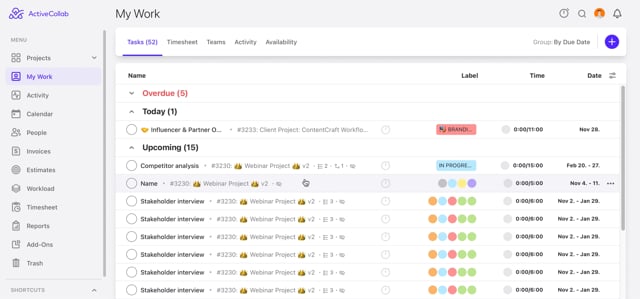
Step 1: Open a task
Step 2: Add text
Step 3: Select the text you want to format as a title or subtitle
Step 4: In the editor, choose Title for a large main heading
Step 5: Choose Subtitle for a smaller secondary heading
Step 6: Continue writing or save the comment
Video Tutorial: https://vimeo.com/1141349299
How do I clear styles when adding comments in ActiveCollab?
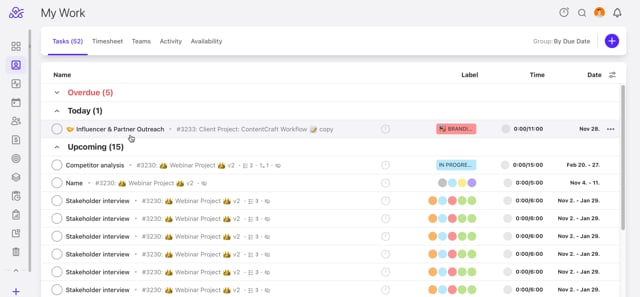
Step 1: Open a task
Step 2: Add text
Step 3: Select the styled text you want to reset
Step 4: Click Clear Styles to remove all formatting (bold, italic, title, etc.)
Step 5: Apply new formatting if needed, or save the comment
Video Tutorial: https://vimeo.com/1141350215
How do I use bullet and numbering lists when adding comments in ActiveCollab?
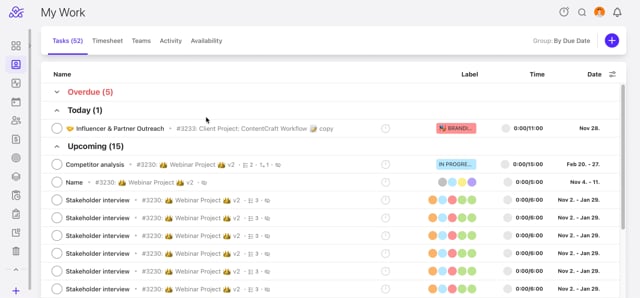
Step 2: Add text
Step 3: Select the lines you want to turn into a list
Step 4: Click Bulleted List to create a simple dot-style list
Step 5: Click Numbered List to create a sequential numbered list
- To indent a list item, press Tab — the item will move one level deeper
- To outdent a list item press Enter — the item will return one level back
Video Tutorial: https://vimeo.com/1141351317
How do I increase or decrease indent when writing comments in ActiveCollab?
Step 1: Open the desired task.
Step 2: Start writing your comment.
Step 3: Click on the increase indent or decrease indent icons.
Step 4: Continue clicking on the icons until you are done or save your comment.
Optional: You can also use the "Tab" key to increase your intend, or "Backspace" to delete/decrease indent behind any text.
Video tutorial: https://vimeo.com/1141417450
How do I insert elements when writing comments in ActiveCollab?
Step 1: Open the desired task.
Step 2: Start writing your comment.
Step 3: Click on the desired icons to insert various elements like:
- Images
- Links
- Tabel
- Horizontal line
Video tutorial: https://vimeo.com/1141419257
How do I add different content blocks when writing comments in ActiveCollab?
Step 1: Open the desired task.
Step 2: Start writing your comment.
Step 3: Click on the desired icons to insert various content blocks like:
- Note
- Quote
- Code
- Info
- Success
- Alert
- General
- Magic
Video tutorial: https://vimeo.com/1141424204
How do I use shortcuts when writing comments in ActiveCollab?
Step 1: Open the desired task.
Step 2: Start writing your comment.
Step 3: Press the "/" key on your keyboard.
Step 4: Select any of the following from the drop-down list:
- Bullet list
- Numbered list
- Table
- Image
- Link
- Divider
- Quote
- Code
- Note
- Info
Video tutorial: https://vimeo.com/1141425414