How does the Split Time option work?
The Split Time option allows you to manually adjust how many hours you plan to work on a task for each day inside the Workload view.
When you turn this option on, the system will automatically redistribute the remaining hours from left to right as you change them. This means that once you enter the hours for one day, the following days will automatically adjust.
The last day cannot be edited until all previous days are set, because it always receives the remaining time needed to complete the total planned hours for the task.
How do you split the time on a task?
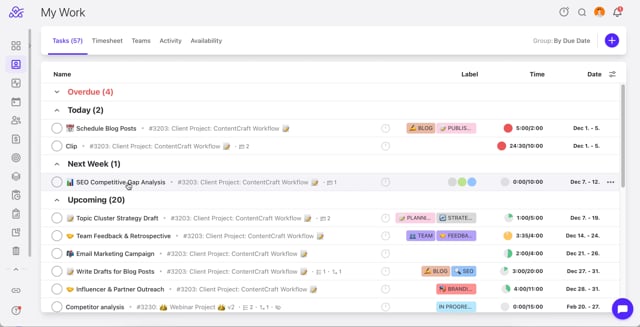
Step 1: Go to the Workload section.
Step 2: Find the task you want to split.
Step 3: Click the Split Time option to enable manual day-by-day editing.
Step 4: Enter the number of hours you want to assign for each day.
Video Tutorial: https://vimeo.com/1143894750
Note: Remember that the last day cannot be edited until all previous days are filled in, as it automatically receives the remaining hours.
How does moving task in the Workload in ActiveCollab affect the task dependancies?
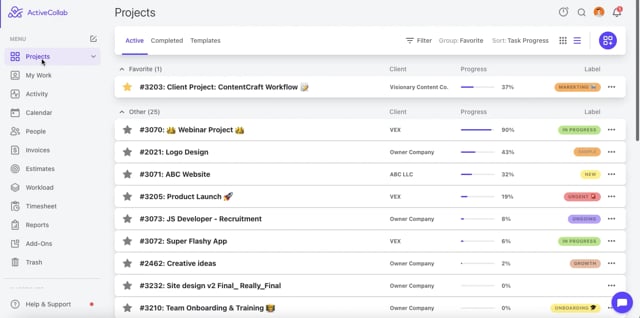
Step 1: Click on your Workload tab.
Step 2: Select the desired user.
Step 3: Click on the desired task and check for active task dependancies.
Step 4: Move the task to the new desired date.
Step 5: You'll receive a confirmation message to match the date changes for dependant tasks.
Step 6: Confirm the changes.
Video tutorial: https://vimeo.com/manage/videos/1143846601
How do the existing OFF days affect the tasks in the Workload tab in ActiveCollab?
Step 1: Click on your Workload tab.
Step 2: Select the desired user.
Step 3: Move your view to the desired task.
Step 4: Move the desired task to a OFF day.
Step 5: Hover over the red triangle on the OFF day to receive the notification reminding you that the task is set for a OFF day.
Video tutorial: https://vimeo.com/1143848366
How do the existing task affect the newly added OFF days in the Workload tab in ActiveCollab?
Step 1: Click on your Workload tab.
Step 2: Select the desired user.
Step 3: Move your view to the desired task.
Step 4: Click on the user and add a OFF day within the task duration.
Step 5: You will get a red triangle on the OFF day to reminding you that the task is set for a OFF day.
Video tutorial: https://vimeo.com/1143849852
How do you split the time estimate within the task?

Step 1: Open the desired project.
Step 2: Open the task you want to edit.
Step 3: In the right sidebar, locate the Time Estimate section.
Step 4: Click the hours in the top-right corner of the Time Estimate section.
Step 5: Review the popup message explaining the Split Estimate behavior and confirm your choice.
Step 6: Enter the number of hours for each day in the available fields.
As you enter hours, the remaining time will automatically be redistributed.
The final day will be calculated automatically and cannot be edited manually.
Video Tutorial: https://vimeo.com/1150418210
Note: The Split Estimate option inside the task is designed for users who do not have access to the Workload tab, allowing them to plan their time directly from the task view.