You can print a task, a note, or a discussion, or save it as a PDF. The print page shows the item as a clean sheet, without the rest of the app around it.
How to print a task, a note, or a discussion
- Open the task, the note, or the discussion.
- Select the options menu ("…") in its header.
- Select Print. The print page opens in a new browser tab.
- Wait until Preparing… disappears, then select Print at the top of the page.

Your browser's print dialog opens. Choose your printer to print on paper.
How to save as PDF
Open the print page as described above and select Print. In the browser's print dialog, choose Save as PDF in place of a printer, then save the file. The name of the option depends on your browser.
What the print page shows
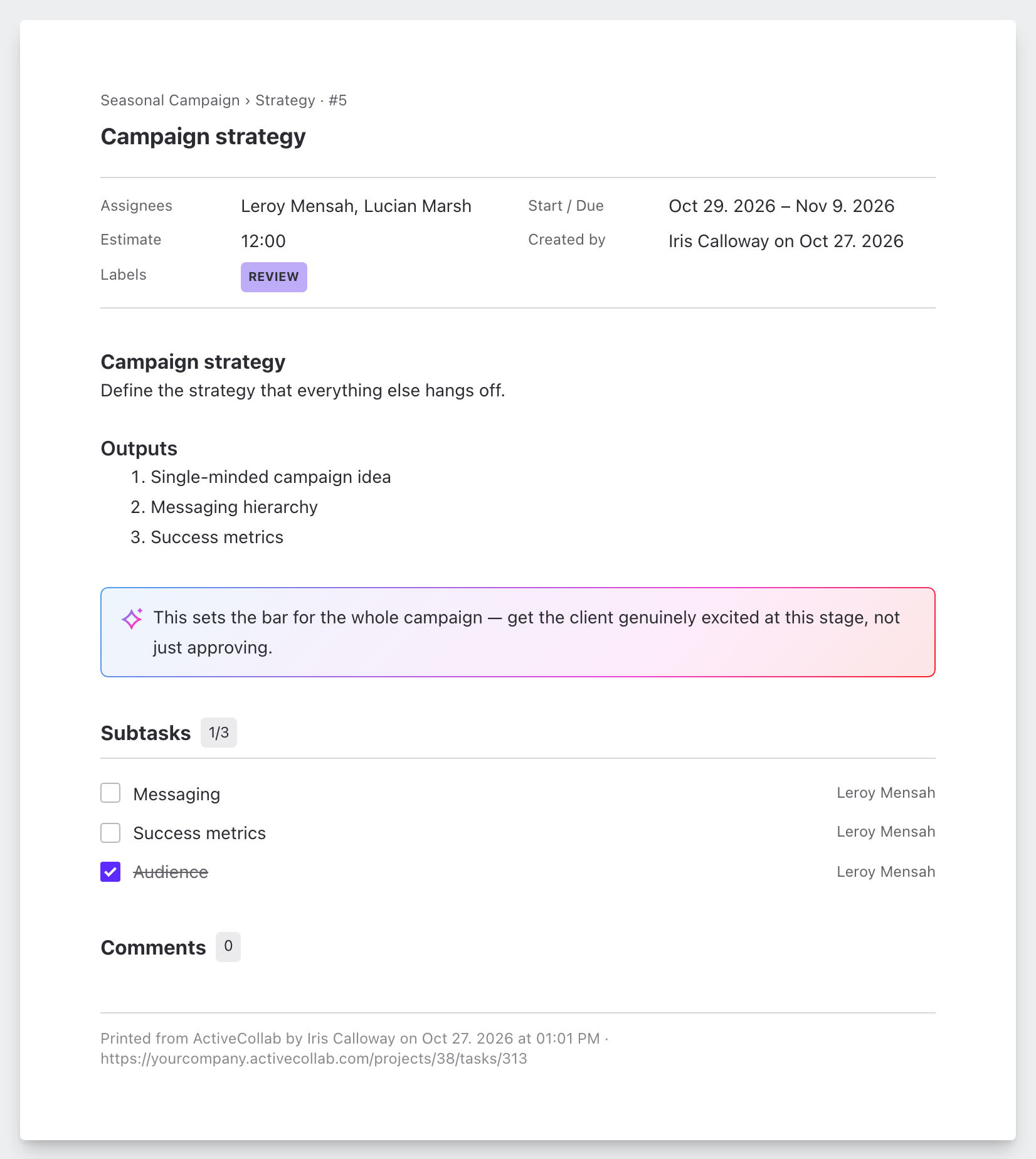
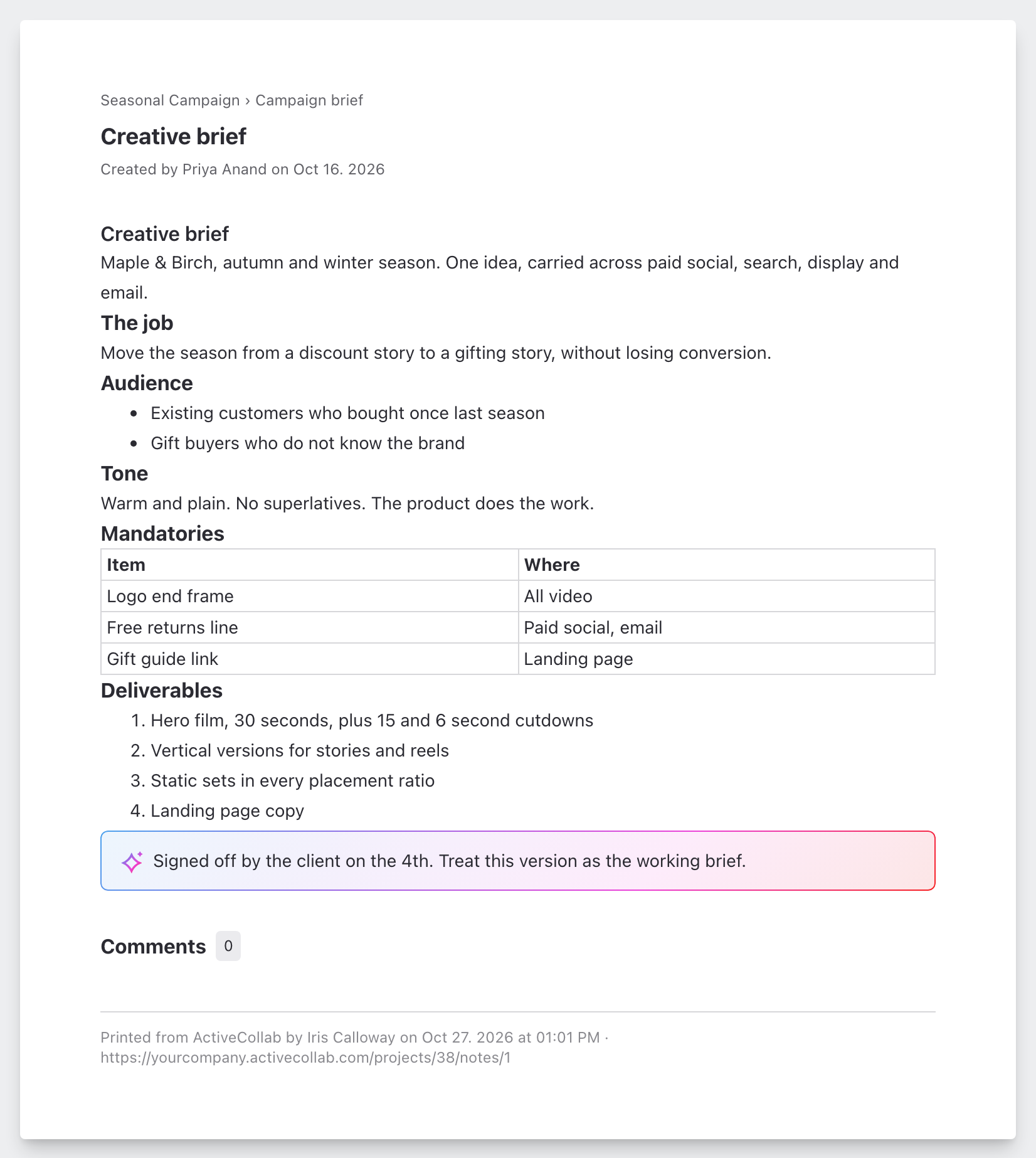
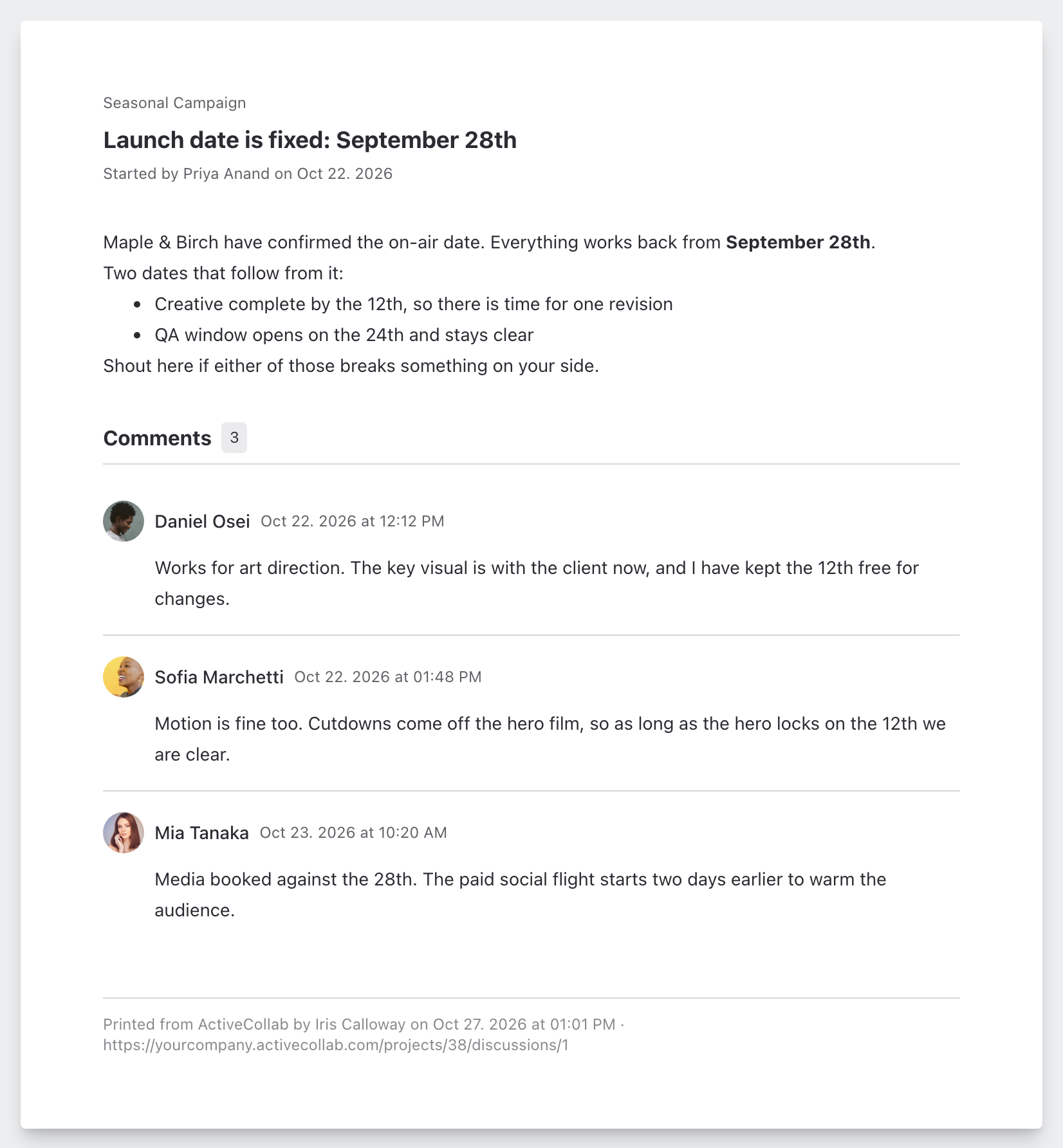
Every sheet has the name of the item, the project it belongs to, a description, attachments, and comments. A footer at the bottom says who printed it and when, and gives the link to the item.
- Task: the task list and task number, whether the task is completed, and its assignees, start and due dates, labels, and who created it. The estimate is included when you can see time estimates. Subtasks are listed under the description with their assignees; completed ones are checked.
- Note: the notebook it is in and who created it, with the date.
- Discussion: who started it, with the date.
Attachments are listed by name and size. Images and documents that have a preview show it under the name.
How to leave out comments
Comments are printed by default. To leave them out, turn off Show comments at the top of the print page. The sheet updates right away.
ActiveCollab remembers your choice for the next time you print.
Note
You can print only what you can open. If the item was moved to Trash or you no longer have access to it, the print page tells you it is not found.