The Capacity feature allows you to monitor how many working hours each team member has available, and how those hours are allocated. It provides a clear, structured table view to help you manage workload distribution and resource planning.
Capacity is part of the GetPaid add-on and must be activated before it becomes available in the navigation menu.
What Does Capacity Show?
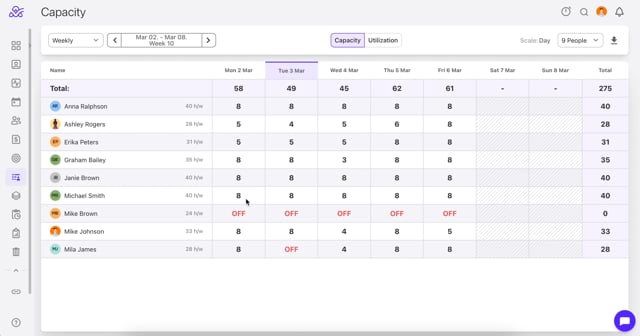
The Capacity page displays internal working hours per team member, organized by days and selected time frames. It allows you to quickly identify availability and workload distribution.
You can switch between different time views:
- Weekly
- Monthly
- Quarterly
- Yearly
- Custom (select your own date range)
Video tutorial: https://vimeo.com/1170665698
Utilization
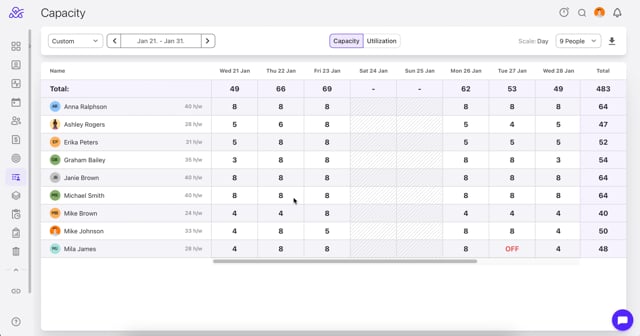
Inside the Capacity section, you can also access the Utilization tab.
This view shows:- Percentage (%) of each team member’s workload
- Numeric breakdown of allocated vs available hours
Video Tutorial: https://vimeo.com/1170666168
Selecting Team Members
You can customize the view by selecting specific team members whose capacity you want to review.
To select individuals:
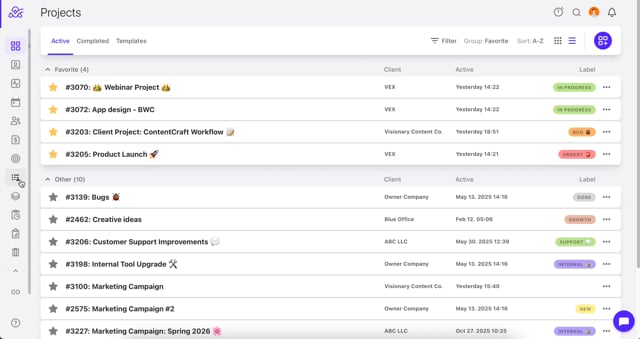
Step 1: Click on the dropdown menu
Step 2: Select the team members you would like to display.
Step 3: The table will automatically update based on your selection.
Video tutorial: https://vimeo.com/1170666559
To select entire teams at once:
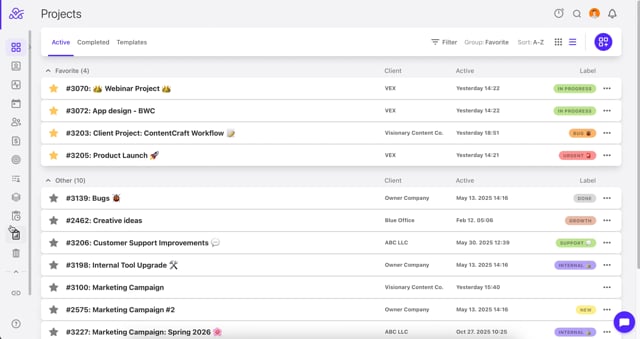
Step 1: Click the team selection icon located next to the search field.
Step 2: Choose the team(s) you want to include.
Step 3: All members of the selected team(s) will be displayed automatically.
Video Tutorial: https://vimeo.com/1170667317
This makes it easy to switch between individual, team-level, or company-wide views.
Data Display Options (Scale)
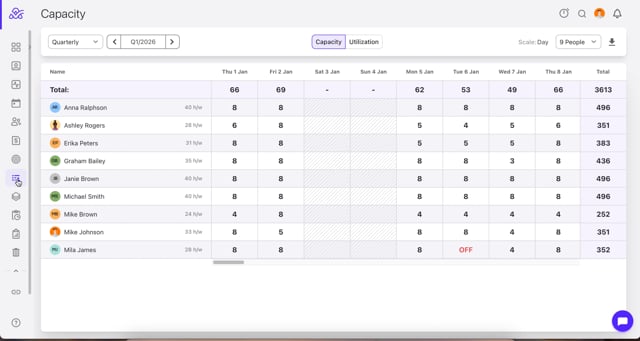
Capacity data can be displayed based on different aggregation levels using the Scale selector.
Available scale options:
- Day
- Week
- Month
- Quarter
The selected scale determines how the data is grouped and summarized.
Non-Working Days
If a team member has an OFF day or a non-working day:- The time is displayed in red.
- This visually indicates that no working hours are available for that date.
How to Export Capacity Data
You can export the Capacity data in CSV format.
Step 1: Go to the Capacity page.
Step 2: Click the Download icon (top right corner).
Step 3: The file will be downloaded to your device.
Video Tutorial: https://vimeo.com/1170668122