Slack
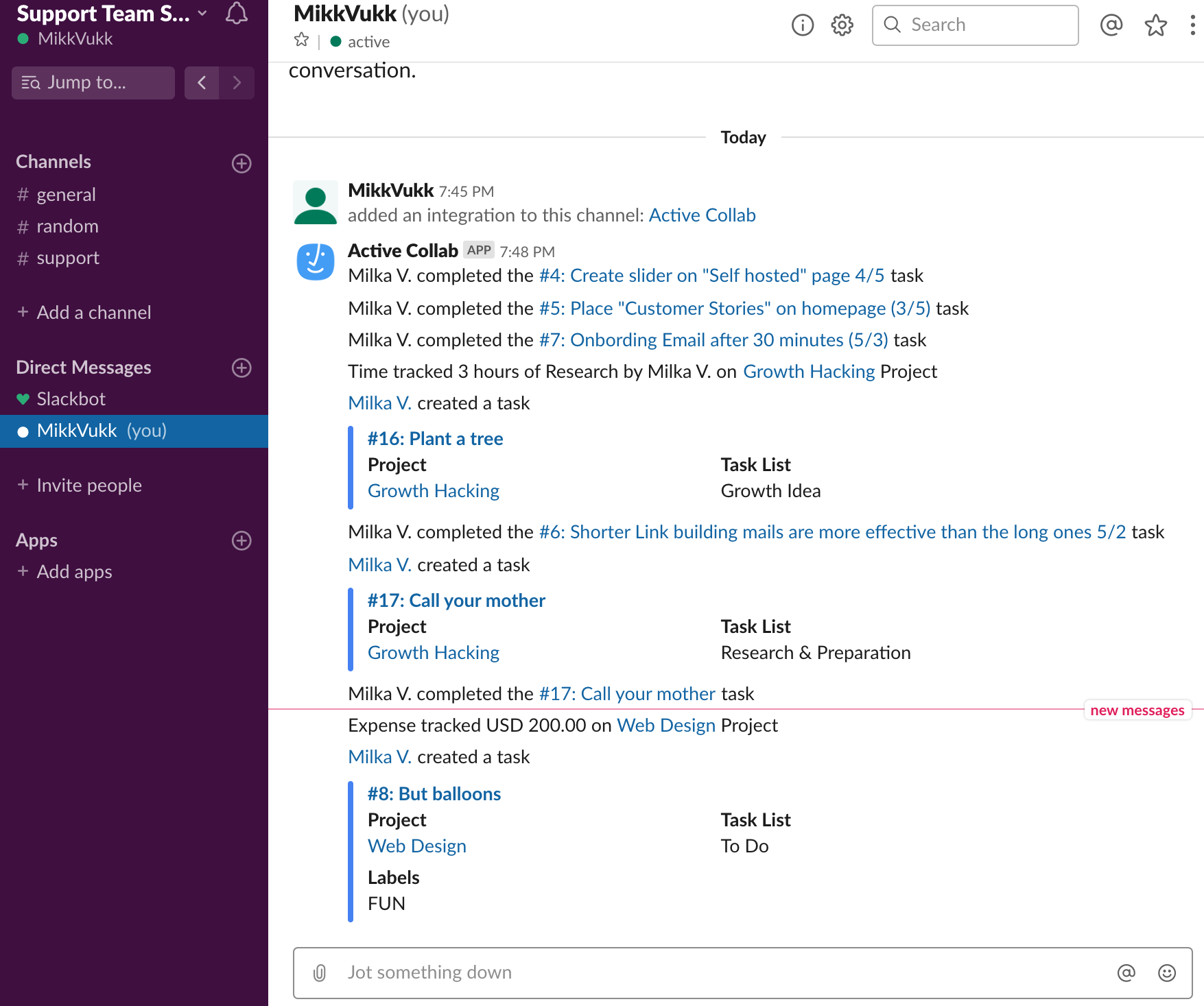
ActiveCollab can post updates from your projects to a Slack channel so you can receive notifications whenever:
- A task is created, completed, copied/duplicated, and moved to a task list,
- Time and expenses are logged,
- A user is invited and when they accept the invitation,
- A project is created (if "All projects" is selected).
To receive updates in Slack for cloud users:
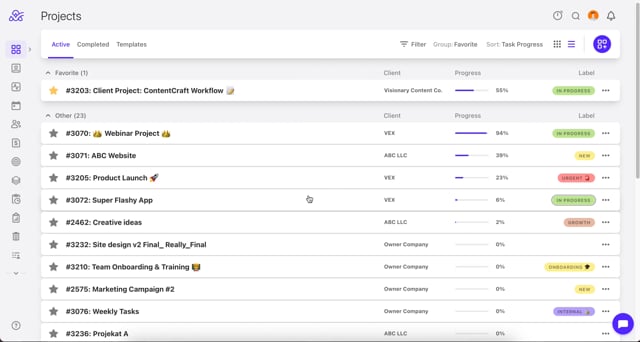
Step 2: Log in to ActiveCollab and click on Slack under Apps & Integrations,
Step 3: Click on Add New Slack Channel
Step 4: Choose the channel where you want to receive updates
Video Tutorial: https://vimeo.com/1159726324
Note: Only the Owner role can see, change and add these settings and they will apply to the entire account.
To receive updates in Slack for self-hosted users:
Before enabling Slack, you need to provide Client ID and Client secret. To get those:
- Create a Slack app,
- Fill out the basic information,
- For instructions and support links, use the link to this help page,
- For the Redirect URI, use the link to your ActiveCollab (eg. https://youractivecollab.com).
When you create the app, you'll see your Client ID and Client secret that you can paste into ActiveCollab. Then:
Step 1: Log in to Slack from your web browser,Step 2: Log in to ActiveCollab and enable Slack under Add-Ons,
Step 3: Choose which projects to include and click Connect,
Step 4: Choose the channel where you want to receive updates and click Authorize.
You can add more connections between different projects and channels or push notifications as direct messages to a certain team member.
If you disconnect the add-on, you'll have to reconnect all the channels and project when activating the add-on again.
Note:
Anyone invited to the channel will be able to see notifications about all tasks, including the ones marked as "Hidden from clients". However, only users with the right permissions will be able to open them in ActiveCollab.