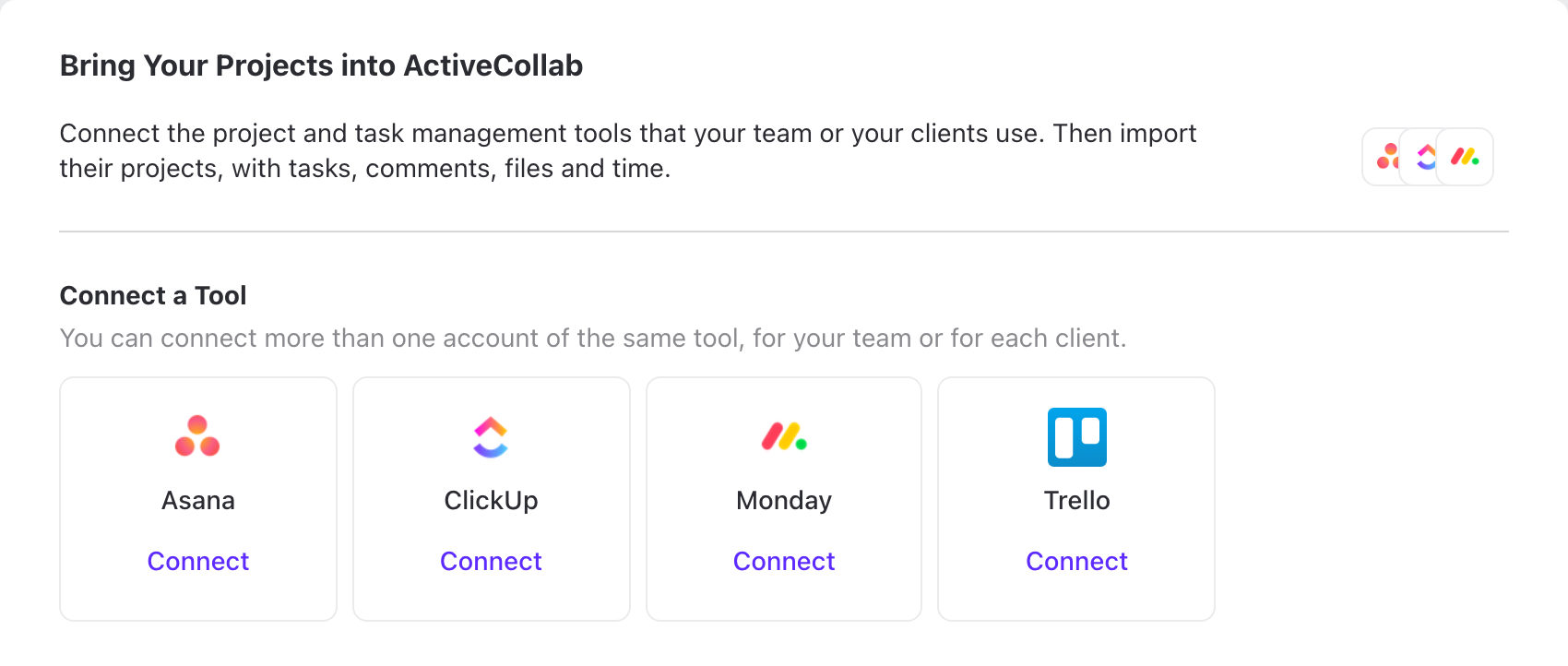
You can bring projects from tools your team or clients use into ActiveCollab. Connect a workspace or account first, then choose what to import. ActiveCollab connects to Asana, ClickUp, Monday, and Trello.
Owners connect workspaces and run imports. Open Project Management under Apps & Integrations to start.
What comes over
- Projects and their structure. Folders, boards, and lists become projects and task lists.
- The work itself. Tasks, subtasks, comments, and files come with each project.
- The people. Match each person to someone in ActiveCollab, or add them as a virtual user.
- As many sources as you need. Connect several workspaces from different tools and clients side by side.
An import copies the projects as they are at that moment. Later changes in the other tool do not sync. One run imports a limited number of projects.
You can import again from the same connection. Items you already imported are skipped, so nothing is added twice.
When you connect a workspace, you choose a client for it. Every project you import from it is filed under that client. To bring your own projects over from another tool, choose your own company as the client to keep them internal.
Connect Asana
Each connection links one Asana workspace to ActiveCollab. You can connect more workspaces later, including ones you can access with the same token.
Find your personal access token
In Asana, open your profile settings, go to Apps, open the developer console, and create a personal access token.
Add the workspace in ActiveCollab
- Open Project Management and choose Connect on the Asana tile.
- Paste your token in Personal Access Token.
- Choose a company in Client. ActiveCollab uses it as the default client for projects you import from this workspace. Choose your own company for internal projects.
- If you see Continue, select it. If your token reaches multiple workspaces, choose the one you want to connect. You can give the connection a name or use the workspace name.
- Select Connect when it appears.
Disconnecting a workspace keeps the projects you've already imported in ActiveCollab.
Connect ClickUp
Each connection links one ClickUp workspace to ActiveCollab. You can connect more workspaces later, including ones you can access with the same token.
Find your personal access token
- In ClickUp, open your avatar menu and choose Settings.
- Select Apps in the sidebar.
- Under API Token, choose Generate if you need to create a token, then copy it. Your token starts with
pk_.
Add the workspace in ActiveCollab
- Open Project Management and choose Connect on the ClickUp tile.
- Paste your token in Personal Access Token.
- Choose a company in Client. ActiveCollab uses it as the default client for projects you import from this workspace. Choose your own company for internal projects.
- If you see Continue, select it. If your token reaches multiple workspaces, choose the one you want to connect. You can give the connection a name or use the workspace name.
- Select Connect when it appears.
Disconnecting a workspace keeps the projects you've already imported in ActiveCollab.
Connect Monday
Each connection links one monday.com account to ActiveCollab. Connect the account that contains the boards you want to import.
Find your personal access token
Use a token from a monday.com admin who is a member of the boards you want to import. The token gives ActiveCollab access only to the boards its owner can access.
- In monday.com, click your profile picture and select Developers.
- In the Developer Center, open My access tokens or API token.
- Select Show if it appears, then copy your personal token. See the monday.com API token instructions.
Add the account in ActiveCollab
- Open Project Management and choose Connect on the Monday tile.
- Paste your token in Personal Access Token.
- Choose a company in Client. ActiveCollab uses it as the default client for projects you import from this account. Choose your own company for internal projects.
- When Connection Name appears, you can enter a name. Leave the field empty to use the name of your monday.com account.
- Select Continue or Connect, whichever appears. ActiveCollab connects the account associated with the token.
Disconnecting the account keeps the data you've already imported in ActiveCollab.
Connect Trello
Each connection links one Trello workspace to ActiveCollab. If your token reaches more than one workspace, connect one now and the others later, one at a time.
Find your API key and token
ActiveCollab connects to Trello with two values: an API key and a token. ActiveCollab only reads from Trello and never changes your boards. Trello's authorization page still asks you to allow read and write access.
- In Trello, open the Power-Up admin portal and create a Power-Up for your workspace.
- Open the Power-Up and generate an API key. Your API key has 32 letters and digits.
- Next to your API key, select Token. Allow access when Trello asks, then copy the token.
If your token has an expiry date, the connection stops when the token expires. To resume importing, create a new token and choose Change Token in the connection's menu. See Manage Connections.
Add the workspace in ActiveCollab
- Open Project Management and choose Connect on the Trello tile.
- Paste your API key in Trello API Key and your token in Trello Token.
- You can enter a name in Connection Name. Leave the field empty to use the name of your Trello workspace.
- Choose a company in Client. ActiveCollab uses it as the default client for projects you import from this workspace. Choose your own company for internal projects.
- If you see Continue, select it. If your token reaches more than one workspace, choose the one you want to connect.
- Select Connect when it appears.
Disconnecting the workspace keeps the data you've already imported in ActiveCollab.
Boards outside your workspaces
If you have boards outside your workspaces, you also see Boards outside your workspaces when you choose a workspace. It covers the boards you can see as a guest, and the boards that are in no workspace. Connect it like a workspace when you want to import those boards.
Manage Connections
Open Project Management to manage a connected workspace or account.
Rename a connection or change its client
Select the connection name, type the new name and press Enter or click outside the field to save. Press Escape to cancel. You can also choose Rename from the connection's menu.
Select the company in the Client column to choose the default client for projects you import later. Choose your own company for internal projects. Use Add new company to create and select a company.
Change a token
If a connection shows Token not valid, replace the token to resume importing.
- Find a personal access token for the same workspace or account. For Trello, find an API key and a token. See Connect Asana, Connect ClickUp, Connect Monday, or Connect Trello.
- Open the connection's menu and choose Change Token.
- Paste your new token, or for Trello your API key and token, and select Save Token. Your imported data and import settings stay in ActiveCollab.
Disconnect a connection
Open the connection's menu, choose Disconnect, and confirm. If an import is running, wait for it to finish before you disconnect.
Disconnecting removes the saved token. The projects, tasks, comments, files and time records you've already imported stay in ActiveCollab. If you connect the same workspace or account again later, a new import uses the existing items so you can avoid duplicates.