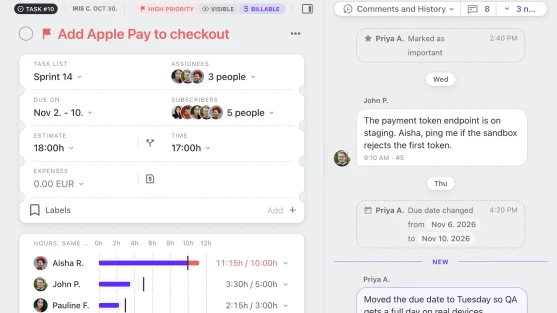
Over the past two months we rebuilt the parts of ActiveCollab you use most: the task view, the task list, and the app around them. Tasks open in a calmer space, lists stay fast with thousands of tasks, and many things that used to take a trip to a form now take one click or a long press.
This post walks through what changed, section by section. Some of it is brand new, a lot of it is something you already use that now does more, and the rest is a fresh look on features that work the way you know.
Rolling out now. The new task list has been on for every account since October 7. The new task view and the rest of the redesign are rolling out gradually, a few accounts at a time, and will be on for everyone by Monday, November 23. If you don’t see it yet, it’s on its way.
A task view built for focus
Tasks open in a calmer space. You pick the layout, size the sheet to your screen, and see where the work stands on time and estimate without opening another dialog.
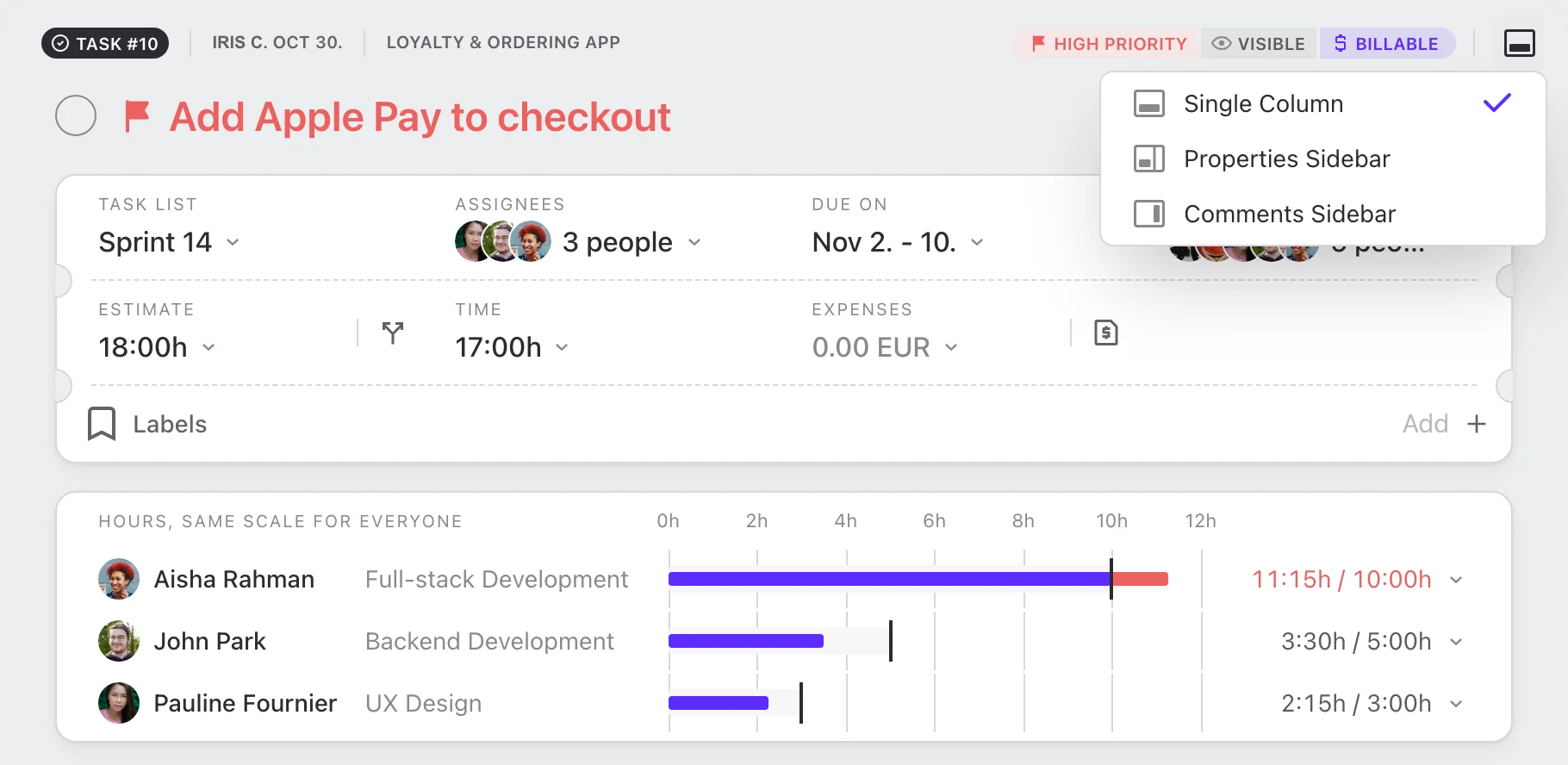
- Pick the Layout That Fits How You Work. Choose Single Column, Properties Sidebar or Comments Sidebar. Your choice follows you to every task you open.
- Switch Layouts From the Top Bar. A layout button in the top bar lets you pick a layout from a short menu, and a one-time tip shows you where to find it.
- Make Every Sheet as Wide as You Like. Drag the edge of a task, discussion, note or event sheet, or use the arrow keys. The width is remembered, and a double-click resets it.
- See How Late a Task Is. In the Single Column and Comments Sidebar layouts, an overdue task carries a red badge with the number of days past due.
- Know Where You Stand on the Estimate. The estimate and the tracked time used to sit in separate places. Now the estimate shows how much of it is used, and warns you when a task runs over.
- Everyone's Hours on One Scale. Each assignee used to show only their estimate. Now, in the Single Column and Comments Sidebar layouts, every assignee gets a bar with estimate and tracked time on one shared scale.
- Time Records by Person. The time records dialog now groups records by person as well as by day, next to the totals for you and for others.
- Copy Just the Task Number. A click on the task number still copies its link. Now a long press copies only the number.
- Rename by Clicking the Title. Renaming a task used to mean opening the full edit form. Now you click the title and type.
- Long-Press Shortcuts Everywhere. Press and hold to set today as the due date, assign or subscribe yourself, remove an assignee, or start editing the description, a comment or a subtask.
- Write the Description in Place. The description used to change only in the full edit form. Now Edit, Enter or a long press opens the editor in place, and empty tasks show an Add a Description button.
- Never Lose a Description Draft. Leave the editor without saving and your text waits for you next time, with an option to discard it.
- Long Descriptions Fold Neatly. Descriptions longer than about a dozen lines fold, with Read More and Read Less.
- Reader Mode for Long Text. Open a task description, a long comment, a discussion post, a note or an event description in a calm, centered reading view with large type.
- Subtask Progress at a Glance. The subtasks header now shows open, completed and total counts with the percent done.
- Unlink Code Row by Row. Linked branches and pull requests get a new look, and each one now has its own Unlink button.
Drop it, paste it, done
Getting files into your work is now as quick as it should be: drag them, paste them, and put them in the order you want.
- Drop Files Anywhere. Files used to drop only into forms. Now drop them anywhere on a task, discussion, note or event and they attach at once.
- Paste to Attach. Press Cmd or Ctrl + V on a task, a discussion, a note, an event or the Files page, and copied files or screenshots attach after a quick preview.
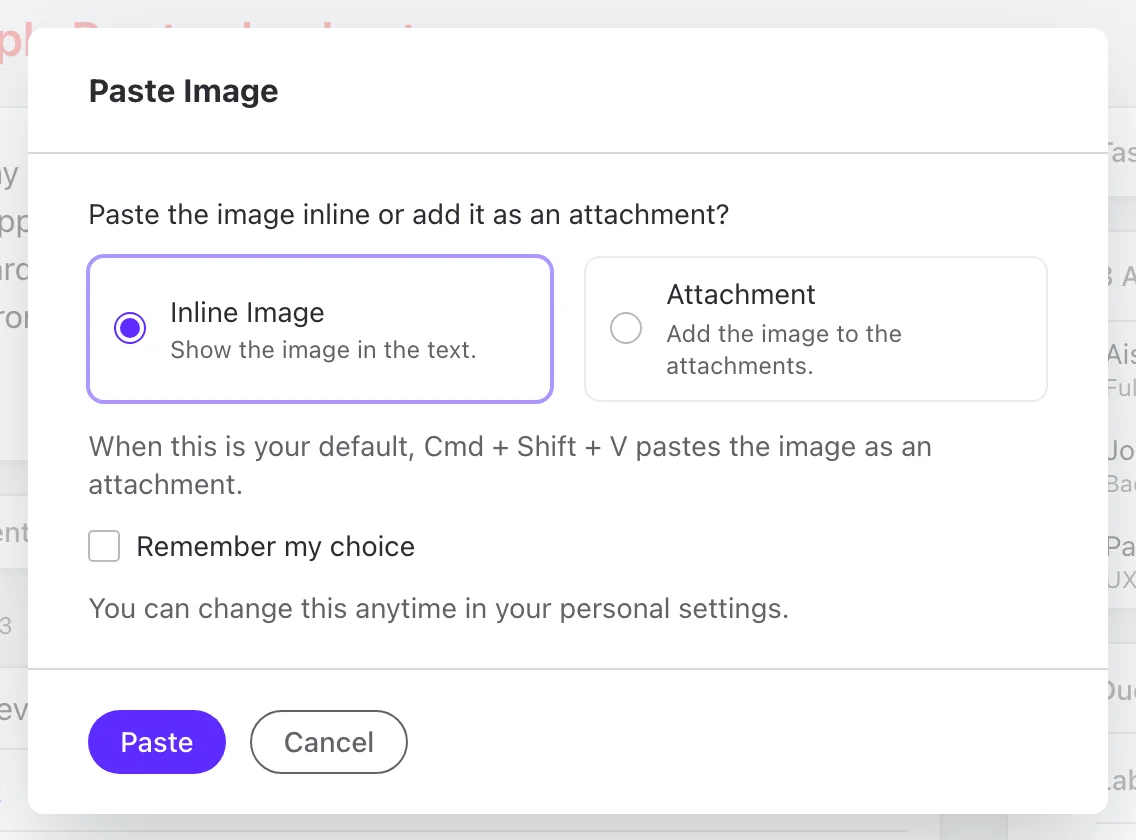
- Inline Image or Attachment? You Decide. Pasted images used to go inline every time. Now you choose inline or attachment, set a default in personal settings, and use Cmd or Ctrl + Shift + V for the other one.
- Put Attachments in Order. Drag attachments into the order you want, and everyone sees it. Uploads now show progress, cancel and retry right in the tiles.
- Reorder Files in a Comment. Comment files show as tiles, and the comment author can now put them in order.
Comments that feel like a conversation
Talking about work now reads like a chat, with the full history of the task between the comments and a clear view of who is around and who will be notified.
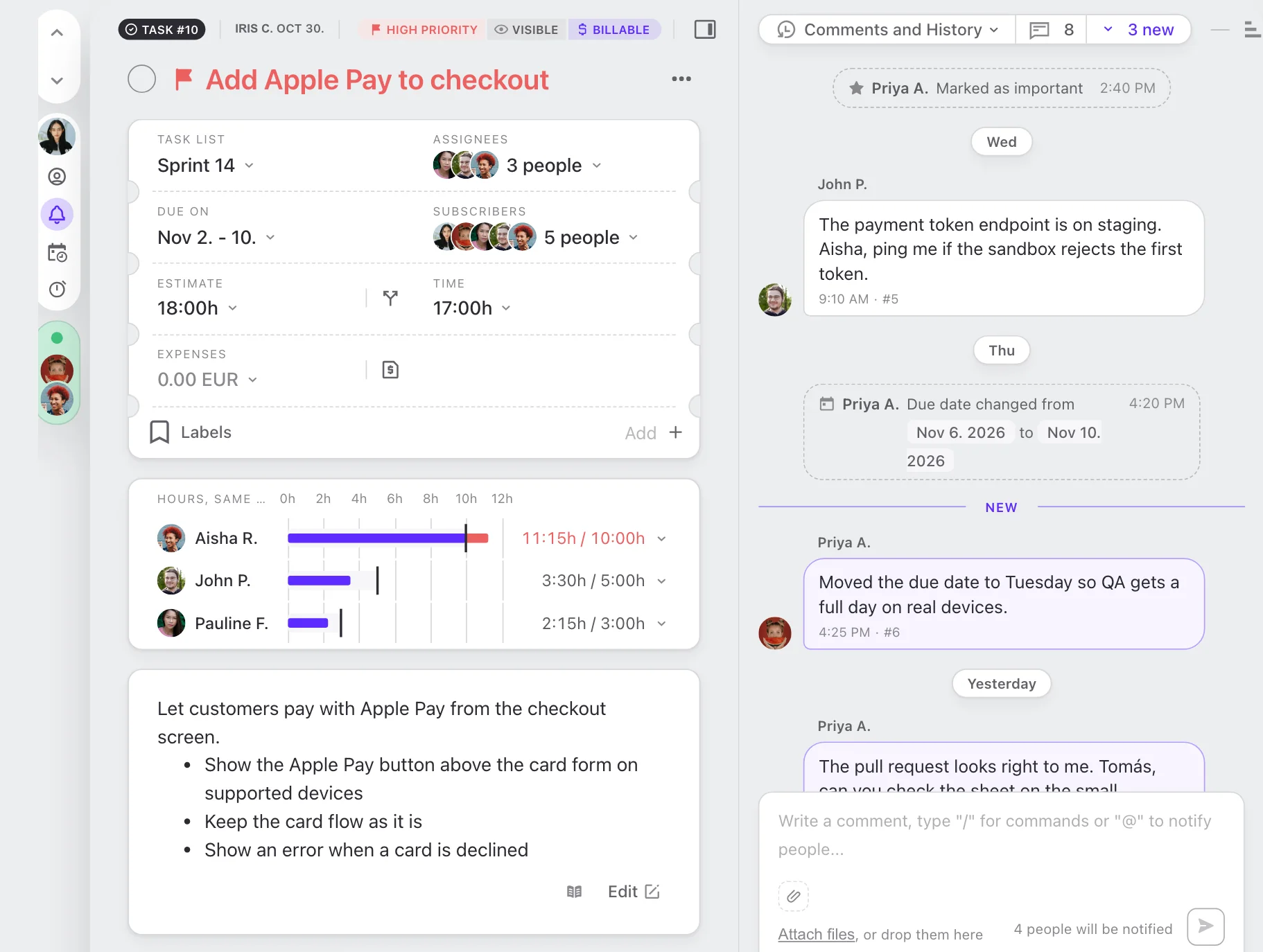
- The Whole Story in One Place. Task history and code events used to live in separate lists. Now they appear between the comments in time order, and quick edits by one person fold into one card.
- Sort Comments Your Way. Choose Older First or Newer First, turn code history on or off, and the app remembers both.
- Links to Old Comments Just Work. A link to any comment now loads older comments until it reaches the right one, then highlights it.
- See How Many Are New. The comments header now shows how many comments are new, and one click jumps to the first unread one.
- See Who Else Is Here. A new Here Now strip shows who else has the same item open, and who is typing.
- Your Actions in One Place. Subscribe, reminders and your stopwatch now sit together beside the item, with a new one-click Assign to Me, and Join or Leave on events.
- Know Who Will Be Notified. The comment box now counts the people your comment will notify, subscribers plus mentions, and a click shows the list.
- Discard a Failed Comment. Comments still post instantly, with Retry. A failed comment now also has a Discard button.
- Long Comments Fold. Long comments fold with Show More and Show Less, and open in Reader Mode for comfortable reading.
- Older Comments at a Glance. Older comments now wait behind a stack that says how many are hidden.
- Comments in a Side Panel. Comments can now sit in a side panel next to the task. Drag the divider to size it, and the width is remembered.
- More Room When There Are No Comments. With no comments yet, the side panel folds into a slim rail, so the task gets the space.
Task lists that keep up with you
The project task list was rebuilt from the ground up and has been the list for every account since October 7. It is faster with big projects and lets you do more without leaving it.
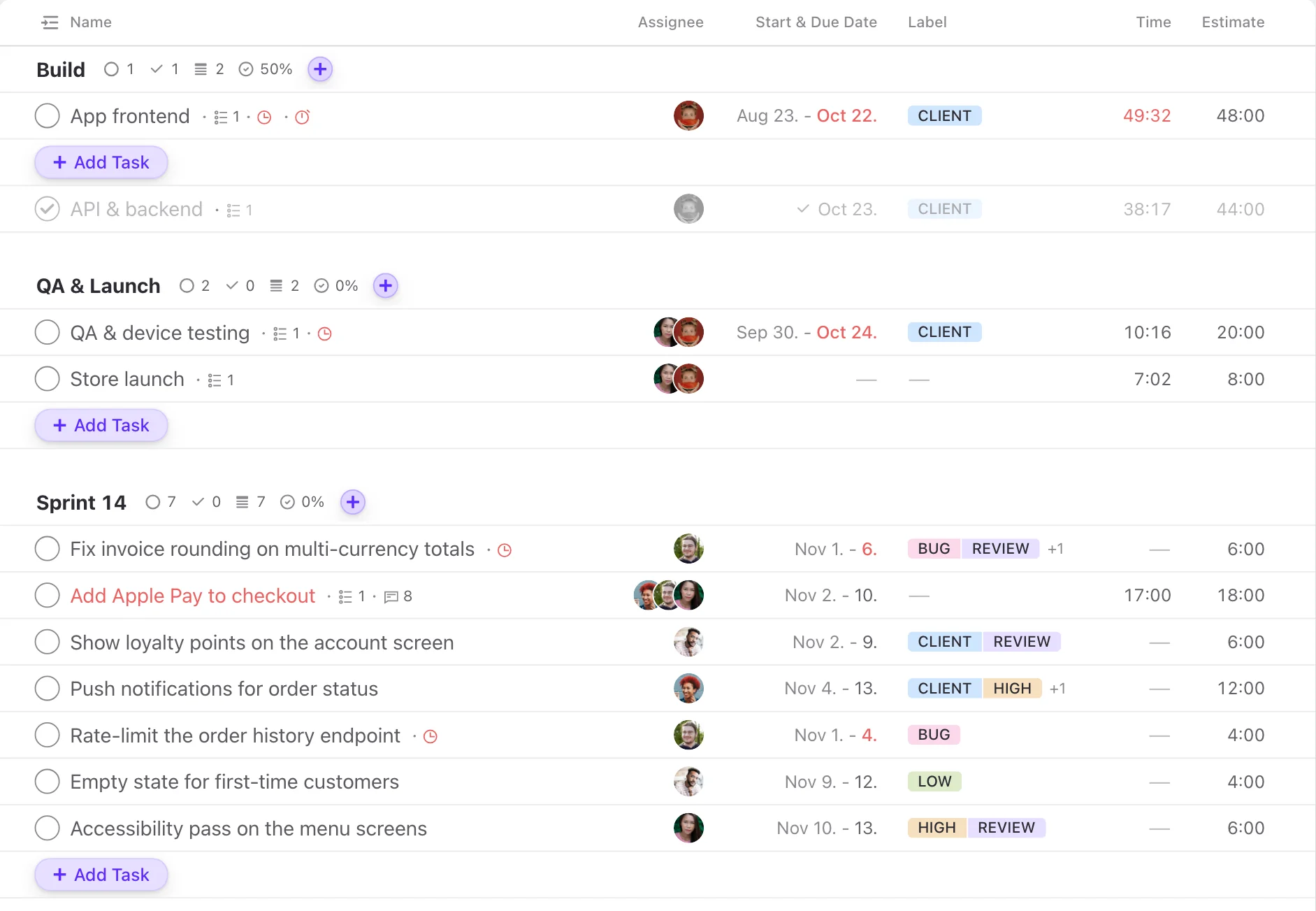
- Put Columns Where You Want Them. Columns could already be reordered. Now ID and Assignee can also sit before the task name.
- Choose 1, 2 or 3 Labels per Row. Rows used to show up to eight labels, often as dots. Now you pick how many show, and the rest go into a +N counter with a tooltip.
- Labels in the Order You Prefer. Show task labels alphabetically or in the order they were added, everywhere they appear.
- Set the Estimate Right in the List. Estimate is now its own column in project lists, and a click on it sets or changes the estimate, with no trip to the task menu.
- Tracked Time and Estimate, Side by Side. Tracked time and estimate used to share one column. In project lists each is now its own column with its own action.
- The Stopwatch in Project Lists. The stopwatch that My Work already had now also sits in project task rows, and a running one stays visible next to the name.
- Overdue and Over-Estimate Indicators. Two new indicators next to the task name flag overdue tasks and tasks over their estimate.
- Press and Hold to Rename, Edit or Delete. New press-and-hold gestures on a task name: hold to rename, add Shift for the full edit form, or Alt to delete it after a confirmation.
- Hold to Set Today or Assign Yourself. Hold the date cell to set today or clear the dates. Hold the assignee cell to assign or remove yourself.
- See When a Task Was Done. Completed tasks now show a check and the day they were done in the date column.
- Percent Done for Every Task List. Task list headers now show the percent done, next to restyled counts.
- Add to the Top of Any List. The + next to a task list name adds the new task right at the top.
- Fast, Even With Thousands of Tasks. Project task lists now draw only the rows you can see, as My Work already did, so big projects scroll without lag.
- Search Tasks by Name, List or Number. A search field in the title bar filters the list as you type, and one click clears it when nothing matches.
Adding tasks, faster
Capture work the moment you think of it: one line for a quick task, the full form when you need detail, and the keyboard all the way.
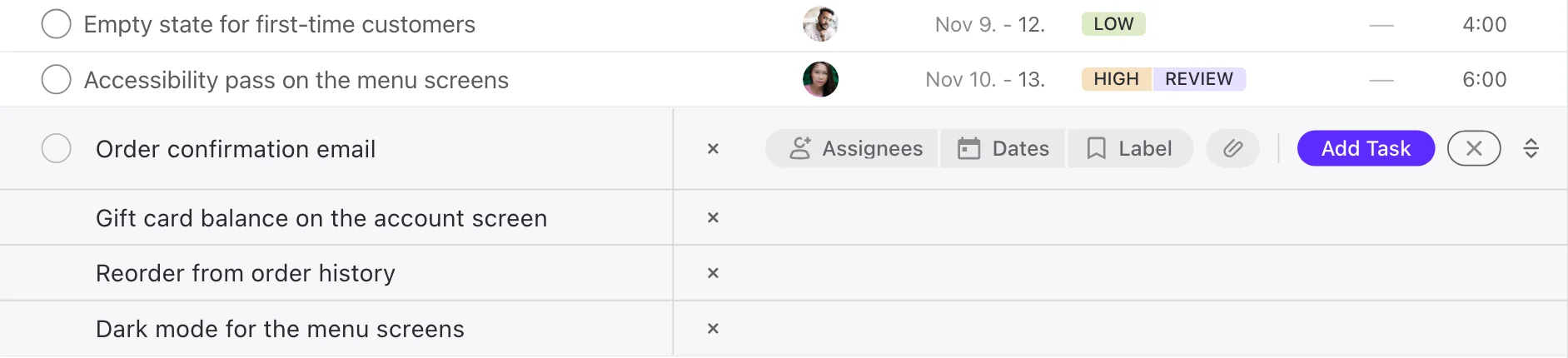
- Tab Through the Add Form. Enter and Cmd or Ctrl + Enter add as before. Now Tab also opens each picker as it reaches it.
- Add Many Tasks at Once. Press Shift + Enter for another row, or paste several lines. Each line becomes its own task with the same details.
- Hidden From Clients Means Hidden. Turning on Hidden from Clients now also removes clients already picked as assignees.
- Make the Detailed Form Your Default. Pin the detailed form and new tasks always open with every field.
- Set the Default Form for the Whole Team. Admins choose Compact or Detailed as the default add form for everyone.
- Keep the Form Open, or Close It After Each Add. The form used to always stay open. Now you can choose to close it after each add, and hold Alt (Option on Mac) to do the other thing once.
- Click Away to Close an Empty Form. A click outside now closes the add form when it is empty. A form with typed text stays open.
- Your Typing Is Never Lost. The form clears at once for the next task. If an add fails, your task comes back into the form, so nothing is lost.
My Work, reworked
Your personal task list moves to the new rows and gets two small helpers to keep it tidy.
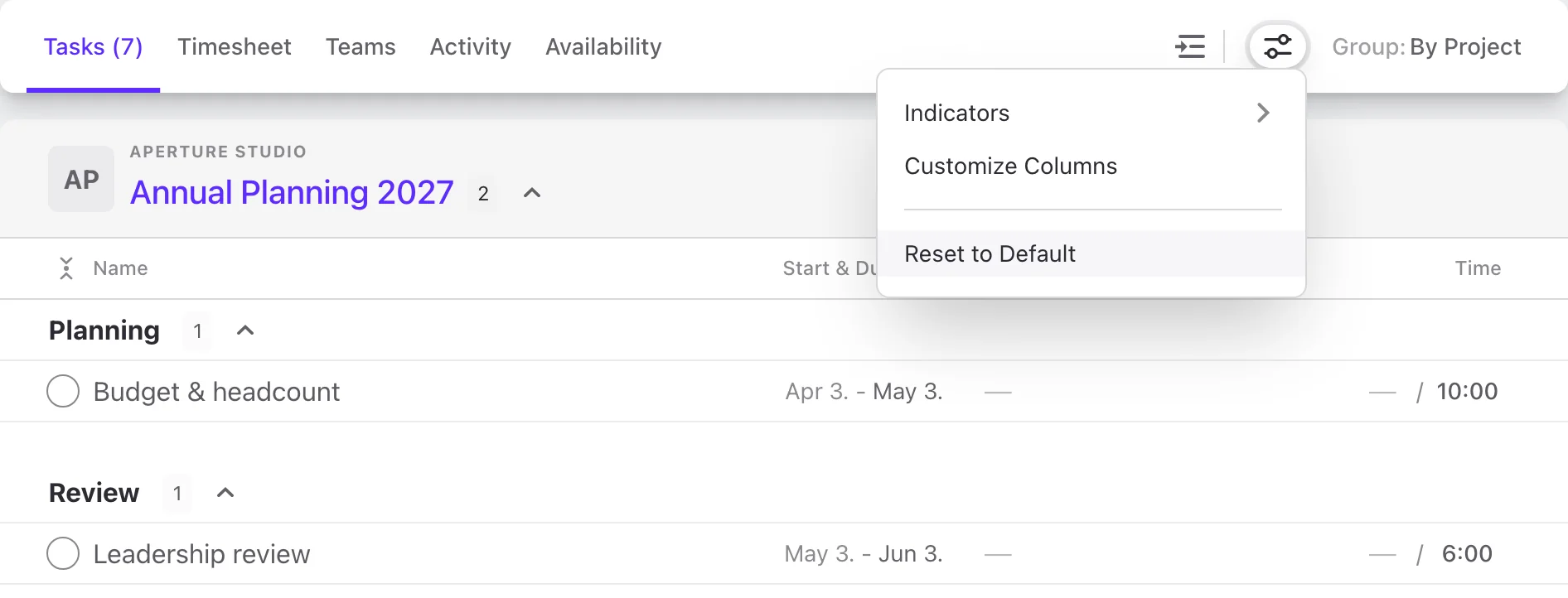
- Collapse All in My Work. One new button collapses or expands all date groups at once.
- Reset My Work to Default. My Work settings are now a menu, with a new Reset to Default.
Kanban, Timeline and Calendar, sharpened
Every way of looking at a project gets search, one shared view switcher, and settings you can apply to all projects at once.
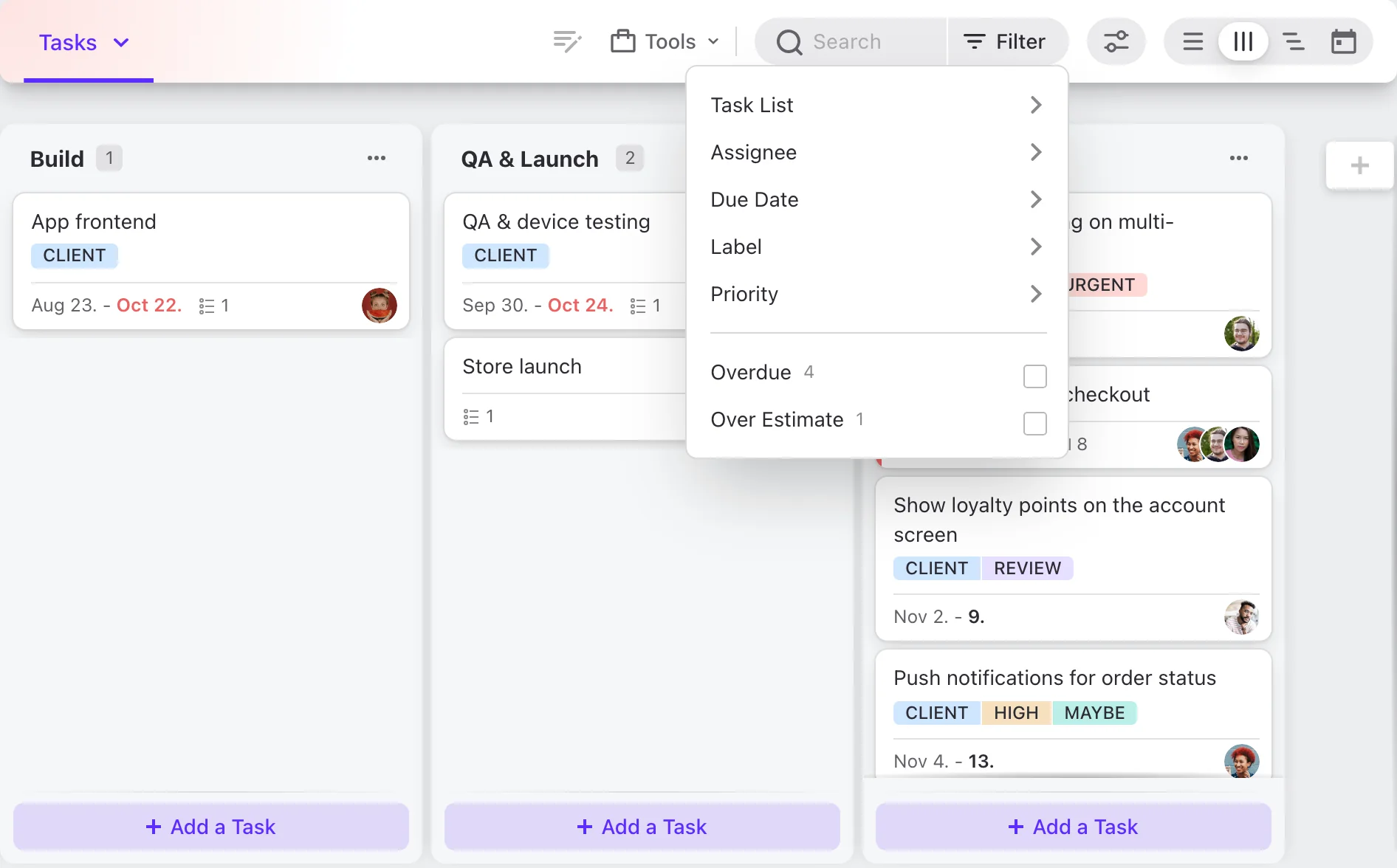
- Use This View in All Projects. Switch a view and a quick All Projects? button offers to make it the default everywhere.
- Settings per Project. Timeline and calendar options used to be one value for all projects. Now each project keeps its own, and one click applies them everywhere.
- Search Joins the Filter. Project views and the Calendar page get text search, joined with the filter in one control, plus quick filters on the list and Kanban.
- Search the Kanban Board. Find a card by typing part of its name or number, with new Overdue and Over Estimate quick filters.
- Highlight Kanban Columns. Show each column as its own soft panel, or keep the board plain. Each project remembers its choice.
- No More Accidental Back Swipes. A sideways swipe at the edge of the Kanban board no longer sends you to the previous page, and the scrollbars have a new look.
- Back to the Top of a Column. After scrolling a long column, one click on Return to Top brings you back to the first card.
- Big Boards Open Faster. Only the Completed column used to draw its cards on demand. Now every column draws cards as they come into view, so big boards open faster.
- Search the Timeline. Type a few words to keep only the tasks whose name, number or list matches.
- Subtask Counts on the Timeline. Tasks now show their subtask count too, and the count and the toggle join into one chip.
- More Timeline on Your Screen. The timeline fills the window to the bottom edge, and a double-click resets the outline width.
- Search the Project Calendar. Find tasks and subtasks by name, by parent task or by assignee.
- Search Your Calendar. Find events by name, by calendar or by participant.
Discussions, notes and events, reimagined
Discussions, notes and calendar events now look and work like the new task view, with the same comments, the same shortcuts and the same calm layout.
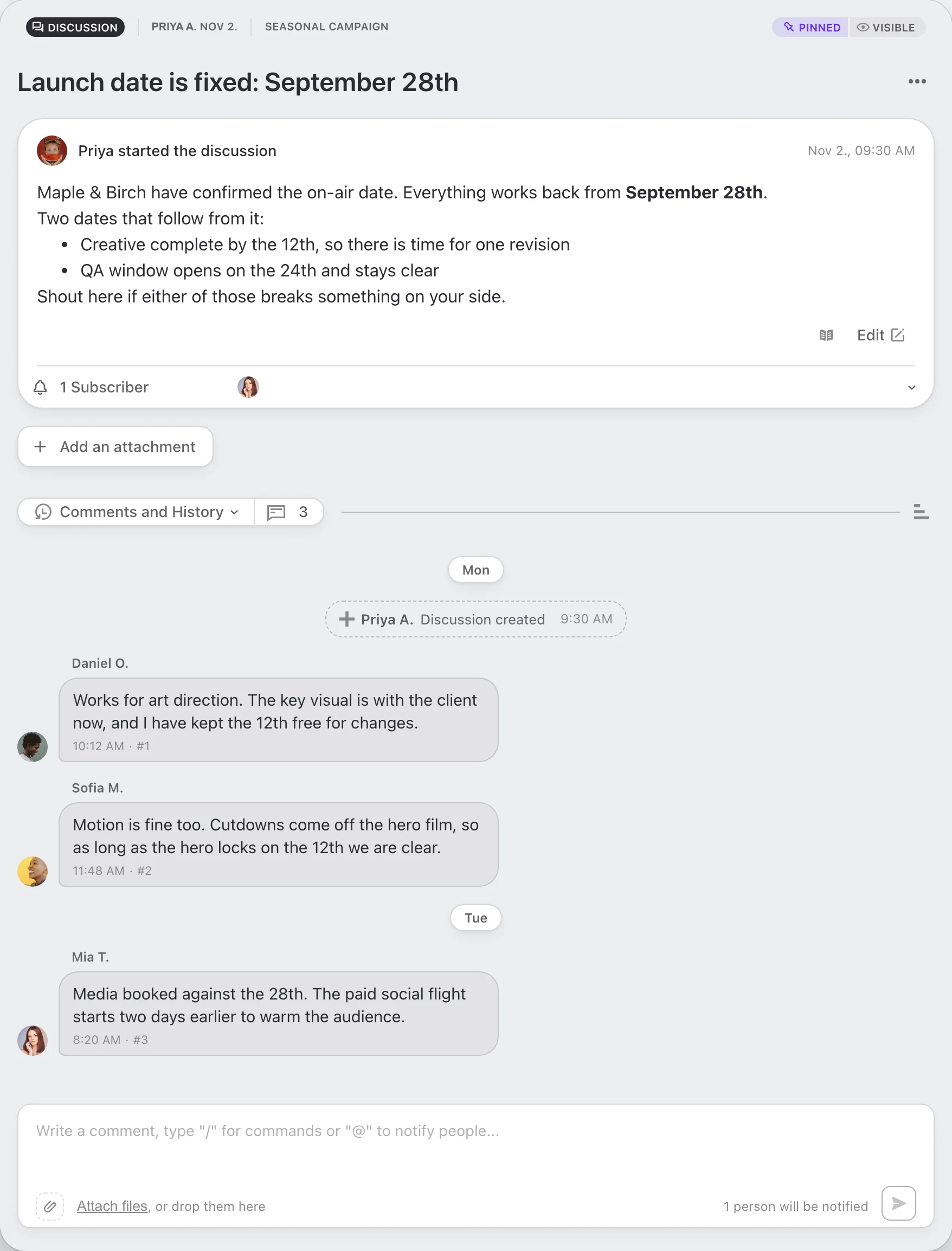
- Rename Discussions and Notes in Place. The title used to change only in the full edit form. Now you edit it right in the header, and the text editor opens with Edit, Enter or the pencil.
- Reply Straight From the List. A new Reply action on a row opens the discussion with the comment box ready.
- Search Discussions. The Discussions page now has its own search, which also finds discussions not loaded yet.
- Step Through Note Versions. The version compare view now has Older Version and Newer Version buttons.
- Search Notes and Notebooks. The Notes page now has its own search across notebooks and notes, or just the notebook you are in.
- Change the Calendar and Meeting Link in Place. Date, repeat rule and participants already changed on the event. Now the calendar and the meeting link do too.
- Join or Leave an Event in One Click. One button adds you to an event or takes you off it.
- Live Status for Events Happening Now. A running event shows the minutes left and a filling bar. An event about to start counts down.
Files, time and activity, made clear
Project sections that used to feel like archives now help you find things fast and see what happened at a glance. Code files now open right in the preview, and every common file type gets its own icon.
- Search Every Folder at Once. Files search covers a folder and all its subfolders, and tells you where it looked.
- Files Your Way. New options show attachments together with files and set the thumbnail size, saved per project. A new Source filter separates uploads from attachments.
- Long-Press to Download. Click a file to preview it, or press and hold to download it straight away.
- Grid or List, per Project. The grid or list choice used to apply to all projects. Now each project keeps its own, with Apply to All Projects.
- Search Time and Expenses. Find any time record or expense in a project, including ones not loaded yet.
- Search the Timesheet by Person or Task. Type a name, task or number and the timesheet opens just the matching rows.
- Activity Summary View. A new Summary view groups each day by item, and the Timeline view now shows old and new values side by side.
- Filter and Search Activity. Activity used to filter only by date. Now filter by person, event type and item type, and search names, actions and people.
- Less Noise in the Activity Feed. Quick back-and-forth assignee changes by one person merge into one entry, and changes that end where they started disappear.
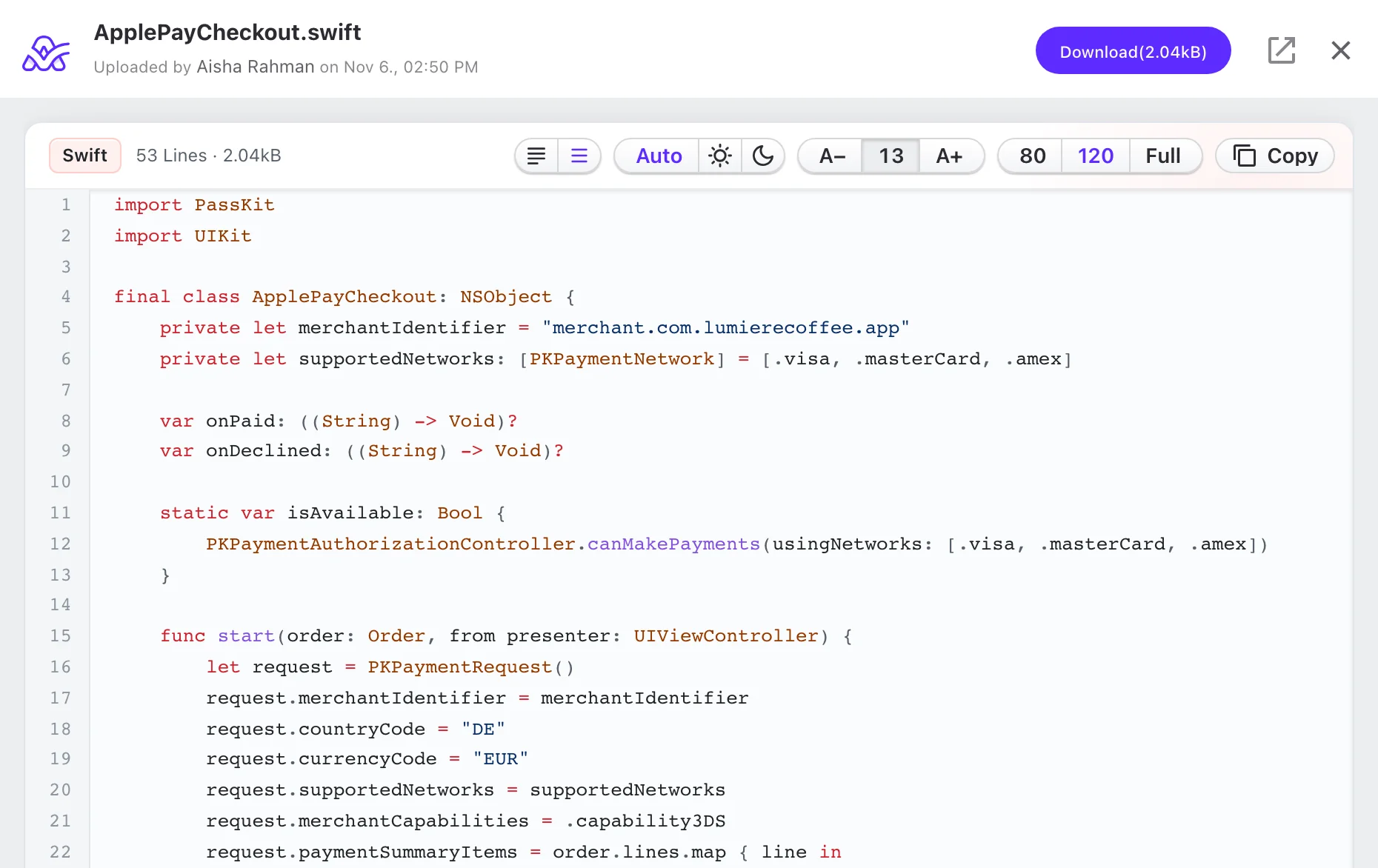
- Read Code Right in the Preview. Code files in 29 languages, from JavaScript and Python to Dockerfile and YAML, open in a highlighted code viewer with line numbers instead of a download.
- Read Code Your Way. Wrap long lines, hide line numbers, pick a light or dark code theme, and set the text size, tab size and line width. Copy the whole file in one click. Your settings are remembered.
- Open Code in a Tab of Its Own. Open in New Tab shows a code file on a full page, with the same settings and a download button.
- HTML Files Shown Safely. An HTML file shows its source as plain text, so nothing in the file can run. Automated tests check this on every change.
- Know Every File by Its Icon. Before, only images, video, audio, archives, PDFs and documents had their own icon. Now code files, Google Drive and Dropbox links and 30 more common types, such as PowerPoint, Figma, Photoshop, CSV and Markdown, get one too. A type with a typical color shows it on the icon and its badge.
- Dark PDF Previews in Safari and the Desktop App. With a dark theme, a PDF preview in Safari and the macOS desktop app now sits on a dark background instead of a white one.
Projects, front and center
The Projects page becomes a command center: rich cards or a dense table, warning signs at a glance, and colors and icons that make every project easy to spot.
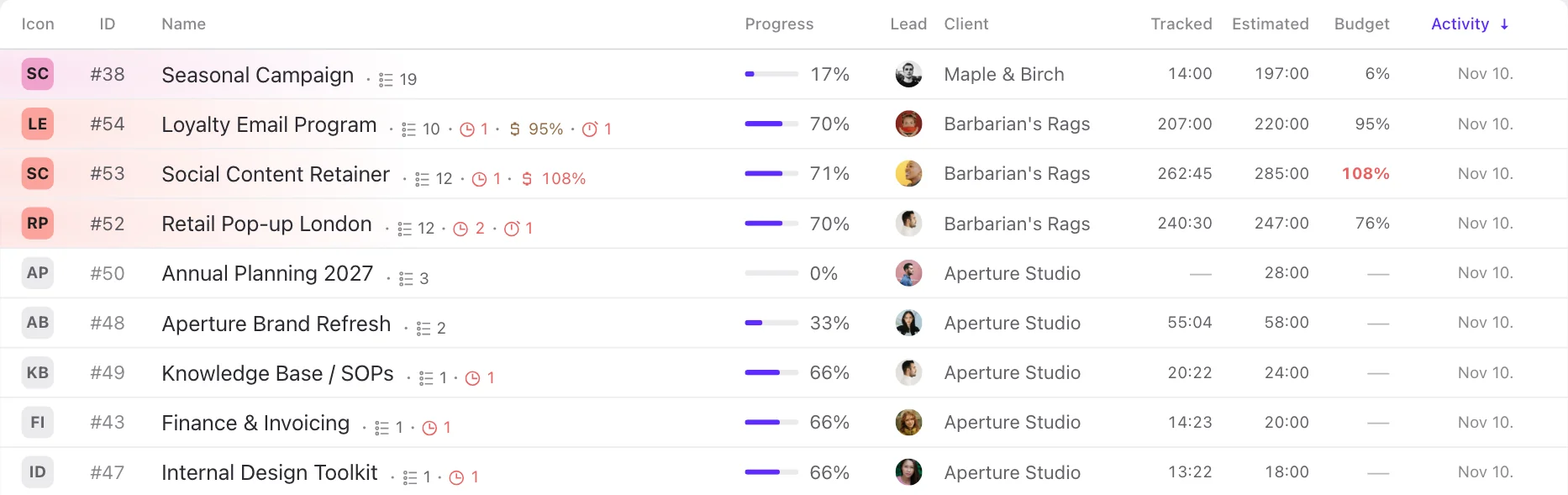
- Project Cards and Table, With More Data. The grid and list views were redesigned and now also show the project icon, people, time against estimate and budget.
- Choose What Every Project Shows. Turn list columns and card fields on or off, and put the list columns in order. Owners set the default for the team.
- Warning Signs at a Glance. New indicators on each project show overdue, over-estimate and open tasks and client access. Budget turns amber at 90% and red at 100%, right in the list.
- Sort by Column Header. Click a column header to sort, with new sort options such as leader, budget used and overdue tasks. Grouping works as before.
- Starred Projects Stay on Top. Starred projects now always form a top group, with any grouping, and the project header shows the star.
- Edit Projects Right From the List. Leader, client and category now change right in the cell, and budget and people details open with one click.
- Search the Projects Page. The Projects page gets its own search by name or number, and a new filter for the projects a person leads or works on.
- Fast With Long Project Lists. Long project lists scroll smoothly, keep your place when you come back, and refresh their numbers on their own.
- Search Completed Projects. The completed projects page moves to the new list and gets search by name or number.
- Colors and Icons for Every Project. Give each project a palette color and an icon: initials, the client logo or your own upload.
- Company Logos Across the App. Companies get a color and a logo that show in lists, profiles and every client picker.
- Jump to Any Project From the Header. Click the project name to see its details beside a searchable project list. A jump keeps you in the same section.
- Copy ID and Link, See Project History. Project details get a cleaner layout, a Copy menu with the new Copy ID and Copy Link, and a new project History of Changes.
- Disconnect a Code Repository. Remove a connected repository from a project in a few clicks, with a confirmation step.
Do more in fewer clicks
Change many projects at once, open any item’s menu right where you are, and let menus get out of your way.
- Batch Edit Projects. Change color, icon, leader, client, label, category, portfolio, settings and people for many projects at once. Anything that cannot change is listed with the reason.
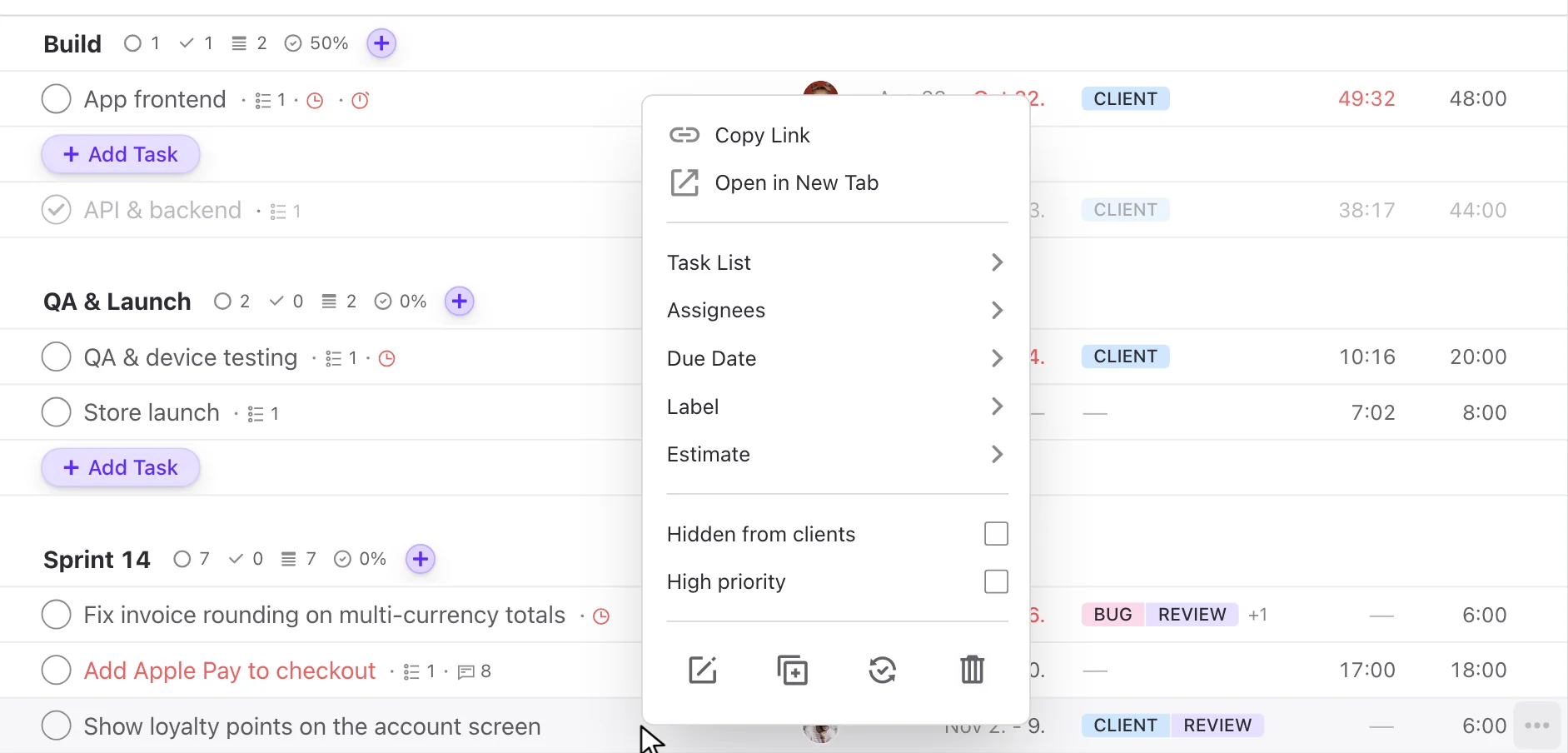
- Right-Click Opens the Item's Own Menu. Item menus used to open only from the three-dot button. Now a right-click on a list item opens its menu right at the pointer. Hold a modifier key for the browser menu.
- Open in New Tab From the Menu. Right-click menus start with Copy Link and the new Open in New Tab.
- Your Choice: Right-Click Menus On or Off. A personal setting turns right-click menus off for people who prefer the browser menu.
- Type to Open a Dropdown. Start typing on a select field and its list opens with your letters already searched.
- Escape Always Closes the Top Window. Escape now closes the front dialog or sheet even after the focused element disappears.
Make it yours
A smarter main menu and new ways to set the look of the app, so ActiveCollab fits your screen, your eyes and your habits.
- A Compact Menu That Opens on Hover. With the new Auto-Expand option, hovering over the compact menu opens it over the page. It closes after you pick a page or when you move away.
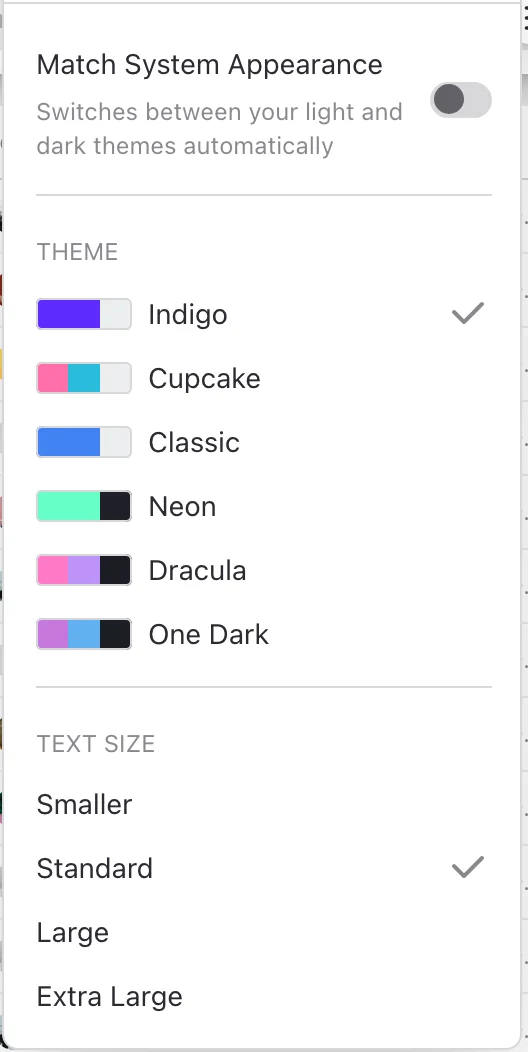
- Text Size That Suits Your Eyes. Choose Smaller, Standard, Large or Extra Large. All text in the app scales from the very first frame.
- Appearance in Two Clicks. A new Appearance item in the user menu switches theme, system matching and text size without opening settings.
Familiar features, fresh design
A good part of the redesign is about features that already worked. They got a new look, a better place or one click fewer, and they work the same way: task facts in one compact ticket, priority, client visibility and billable as switches, the full edit form in a dialog, dependencies drawn as a tree, one view switcher for every project view, and create dialogs for discussions, notes and events.
Polish and finish
And then there are the small things you will notice without looking for them: a new family of illustrations, deeper light and dark themes, labels as colored chips, redesigned Kanban cards, a slimmer page header, pages that do not jump while they load, and smoother sheets, dialogs and menus. The desktop app now matches your theme, too.
When you’ll get it
We are rolling out the redesign gradually, a few accounts at a time, and every user will have the new look by Monday, November 23. If you don’t see it yet, it’s on its way.
That is a lot of change in one go, and we built it around the way you told us you work. Give it a try once it lands in your account, and let us know what you think at support@activecollab.com.